
Custom Classes & 3D Models
Custom classes let you define specialised agent templates beyond the seven built-ins. A class you create works identically to a built-in — it can carry instructions, a default skill set, and its own 3D model — and is available when spawning any new agent.
Creating a custom class
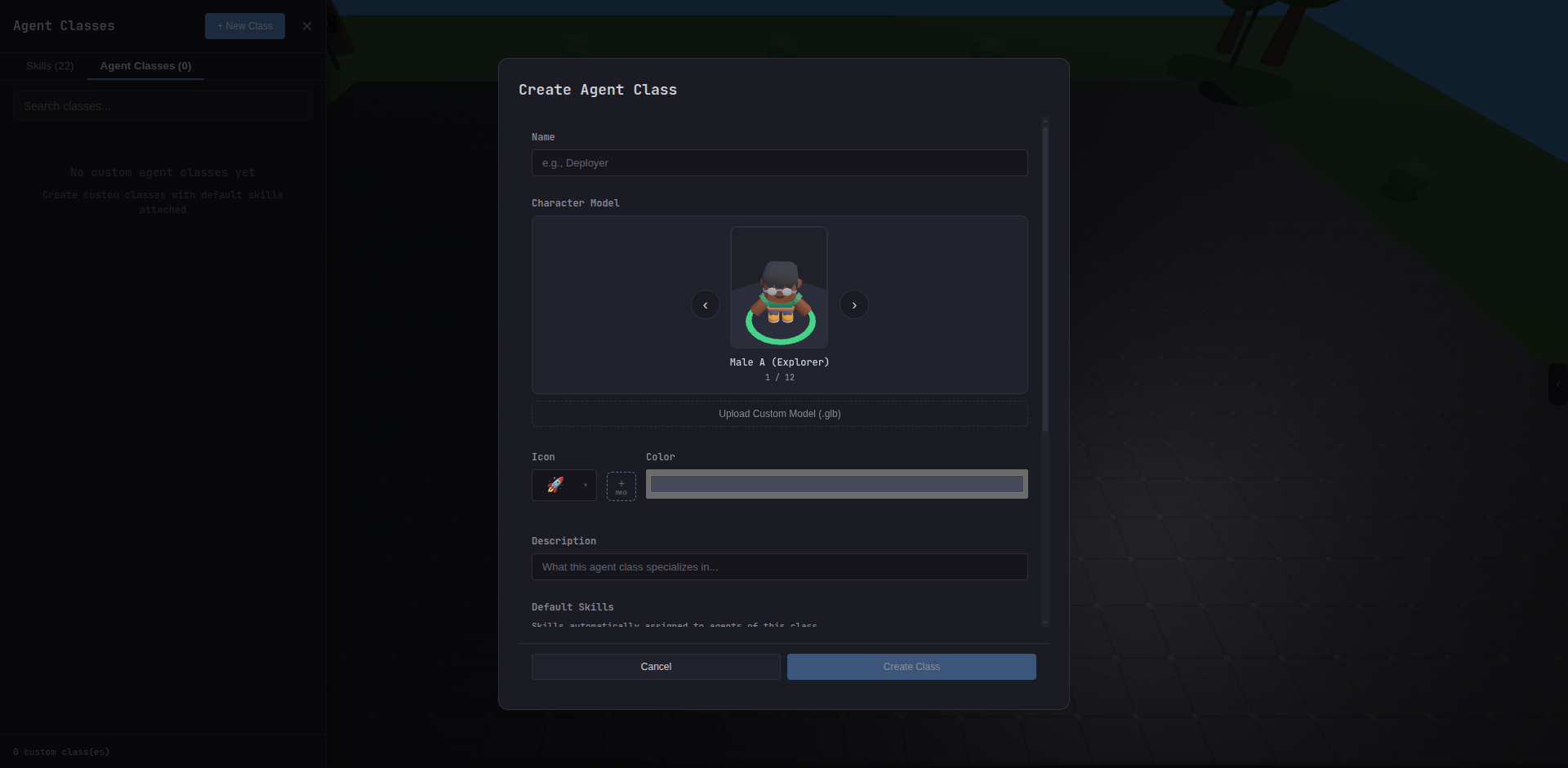
- Open Settings → Manage Skills (or click the skills icon in the toolbar).
- Switch to the Classes tab.
- Click + New Class.
- Fill in the name, icon, accent color, and description.
- Write instructions in the Instructions field — plain markdown, injected as a system-prompt section for every agent of this class.
- Add default skills by selecting from the available skill list.
- Optionally upload a custom GLB model.
- Save.
Instructions
Instructions are the most impactful part of a class definition. They sit in layer 3 of the prompt stack — above the global System Prompt but below individual agent instructions and skills.
Write instructions as if briefing a contractor on their role. Be specific:
You are a Security Auditor. Before any code change:1. Check for OWASP Top 10 vulnerabilities.2. Flag hardcoded credentials.3. Note any insecure default configs.Never modify production files without explicit confirmation.Custom 3D models
Supported format
Custom models must be GLB (GLTF Binary) — the binary container format for GLTF 3D assets. Maximum file size: 50 MB. GLB files can be exported from Blender, generated by Ready Player Me, or sourced from Mixamo.
Animation mapping
If your GLB contains animations, Tide Commander detects them automatically and tries to auto-map common names:
| State | When shown | Common animation names |
|---|---|---|
| Idle | Waiting, no task | idle, Idle, standing |
| Walk | Moving on terrain | walk, Walk, run |
| Working | Processing a task | work, typing, action |
If auto-mapping fails or you want a different mapping, use the dropdowns in the class editor to assign each state manually.
If your model has no animations, Tide Commander falls back to procedural motion (gentle bobbing and rotation).
Model configuration
- Scale — size multiplier relative to the terrain grid. Default:
1.0. Boss agents automatically receive an additional 1.5× scale on top. - Offset (X, Y, Z) — position adjustment to center the model on the ground plane. Useful if your model’s origin is at its feet vs. its center.
Storage locations
| Asset | Path |
|---|---|
| Custom model GLB | ~/.tide-commander/custom-models/{classId}.glb |
| Class definitions | ~/.local/share/tide-commander/custom-classes.json |
| Class instructions | ~/.tide-commander/class-instructions/{classId}.md |
Backing up these three locations preserves your complete custom class configuration.
Changing an agent’s class
You can change any live agent’s class through the Edit Agent modal. The 3D model swaps in real time on the battlefield. Instructions and skills update on the agent’s next restart.