Boss & Subordinates
Your First Agent
The Quickstart gets you running in 90 seconds. This page goes deeper — every field in the Spawn dialog, what happens after you click Spawn, and how to steer an agent once it’s alive.
The Spawn Agent dialog
Hit Alt + N or click + New Agent to open the dialog.
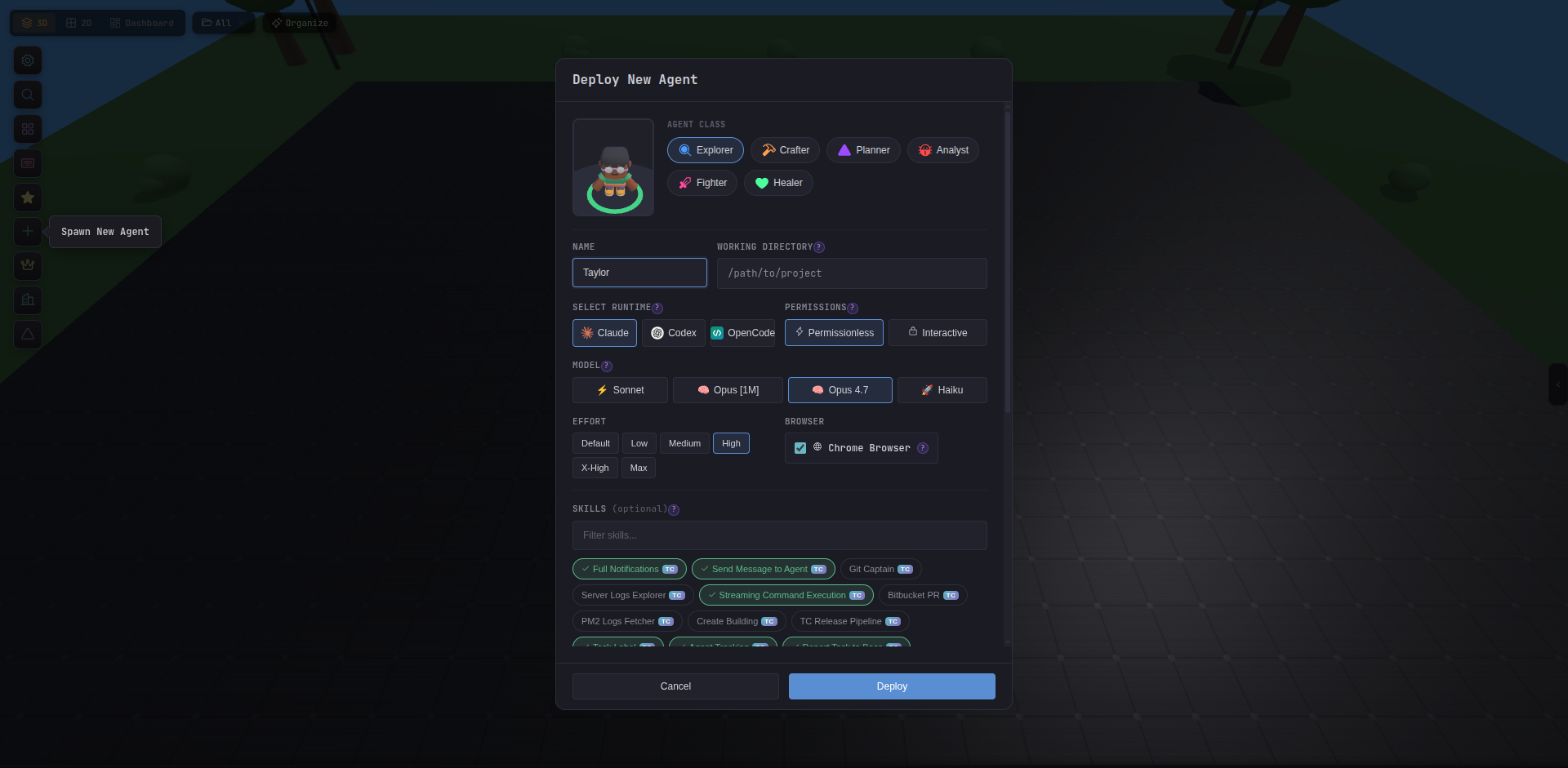
Fields explained
| Field | What it does |
|---|---|
| Name | Display name shown on the battlefield and in the inspector. Pick something memorable — you’ll reference it when talking to a Boss. |
| Working directory | The directory the CLI process runs in. The agent can only read/write files relative to this path. |
| Class | Visual style + default skills + optional class instructions. Scout is a good default. |
| Provider | Which CLI to spawn: Claude Code, Codex, or OpenCode. |
| Model | Which AI model to use. Defaults to Opus [1M] for Claude. |
| Effort | Reasoning depth. Defaults to X-High (extra reasoning). Lower values are faster; Max uses extended thinking. |
| Permission mode | Bypass lets the agent run all tools without prompting. Interactive requires approval for dangerous operations. |
| Skills | Pre-assign skills. Defaults include notifications, task tracking, streaming exec, and inter-agent messaging. |
| Custom instructions | Per-agent instructions appended to the system prompt, on top of the global system prompt and class instructions. |
What happens when you click Spawn
-
Process launch
Tide Commander starts a real CLI subprocess in your chosen working directory:
- Claude:
claude --output-format stream-json --dangerously-skip-permissions - Codex:
codex exec --experimental-json - OpenCode:
opencode run --format json
- Claude:
-
Character appears
A 3D character drops onto the battlefield at a random position. The character model matches the class you chose.
-
Session created
A session ID is assigned. This ID ties the agent to its conversation history. If you restart Tide Commander, the agent resumes where it left off.
-
Skills injected
All assigned skills are compiled into the system prompt. The agent now knows how to send notifications, use streaming exec, etc.
Sending commands
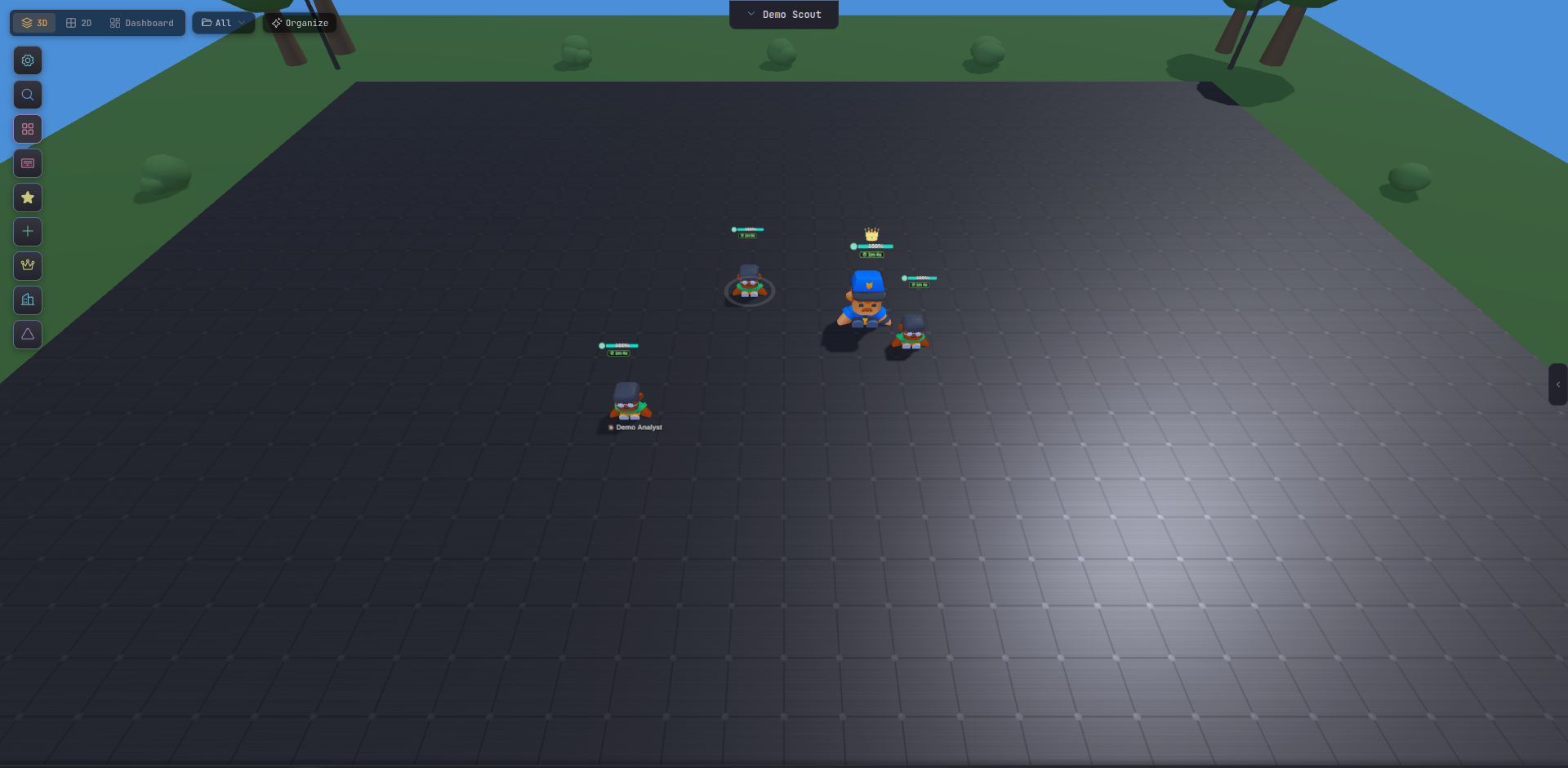
Select an agent by clicking its character or pressing its number key (1, 2, 3…). The command bar at the bottom activates.
Type your task and press Enter:
Read src/auth/session.ts and explain how session tokens are validated.Then check if there are any obvious security issues.The agent gets to work immediately. Watch the activity feed in the right panel (Alt + R) for live output.
Reading the output
Shows the full message thread: your commands, the agent’s text responses, and tool calls formatted inline. Click any file the agent touched to see the diff.
Shows agent metadata: model, working directory, session ID, context usage (the “mana bar”), and tracking status.
Lists every file the agent has modified in its working directory with a diff view. Useful for reviewing work before committing.
Follow-up commands
Agents maintain context across commands. Once you’ve asked an agent to read a file, a follow-up like:
Now fix the issue you found and write a test for it.…will work without re-establishing context. Each command is a new message in the ongoing conversation.
Multiple agents
Repeat the spawn flow for a second agent with a different working directory or class. You now have parallel workers.
Switch between them with number keys (1, 2…) or use Ctrl + K to spotlight-search by name.