
Custom Classes & 3D Models
Full authoring guide — GLB upload, animation mapping, scale, offset. See Custom Classes.
A class is a reusable template that bundles three things: a 3D character model, a set of default instructions, and a set of default skills. When you spawn an agent you pick a class; the agent inherits everything in that bundle immediately.
Classes are cosmetic by default — a Scout and a Builder run the exact same underlying CLI process. The class only affects what the agent looks like on the battlefield and what instructions + skills it starts with. To make a class behave differently, add custom instructions or skills to it.
Exception: the Boss class is not cosmetic. Agents assigned the Boss class can have subordinates and gain the delegation system.
Tide Commander ships seven classes:
| Class | Default role |
|---|---|
| Scout | Exploration, research, codebase surveys |
| Builder | Feature implementation, scaffolding |
| Debugger | Bug investigation, log analysis |
| Architect | System design, planning, architecture reviews |
| Warrior | Aggressive refactors, migrations, deletions |
| Support | Documentation, test writing, review |
| Boss | Team coordination and delegation |
There are 12 built-in 3D character models (6 male, 6 female) shared across these classes.
flowchart LR Class --> Model[3D Model + animations] Class --> Instructions[System prompt instructions] Class --> Skills[Default skills list] Class --> Meta[Name, icon, color, description]Class instructions sit in the middle of the five-layer prompt stack:
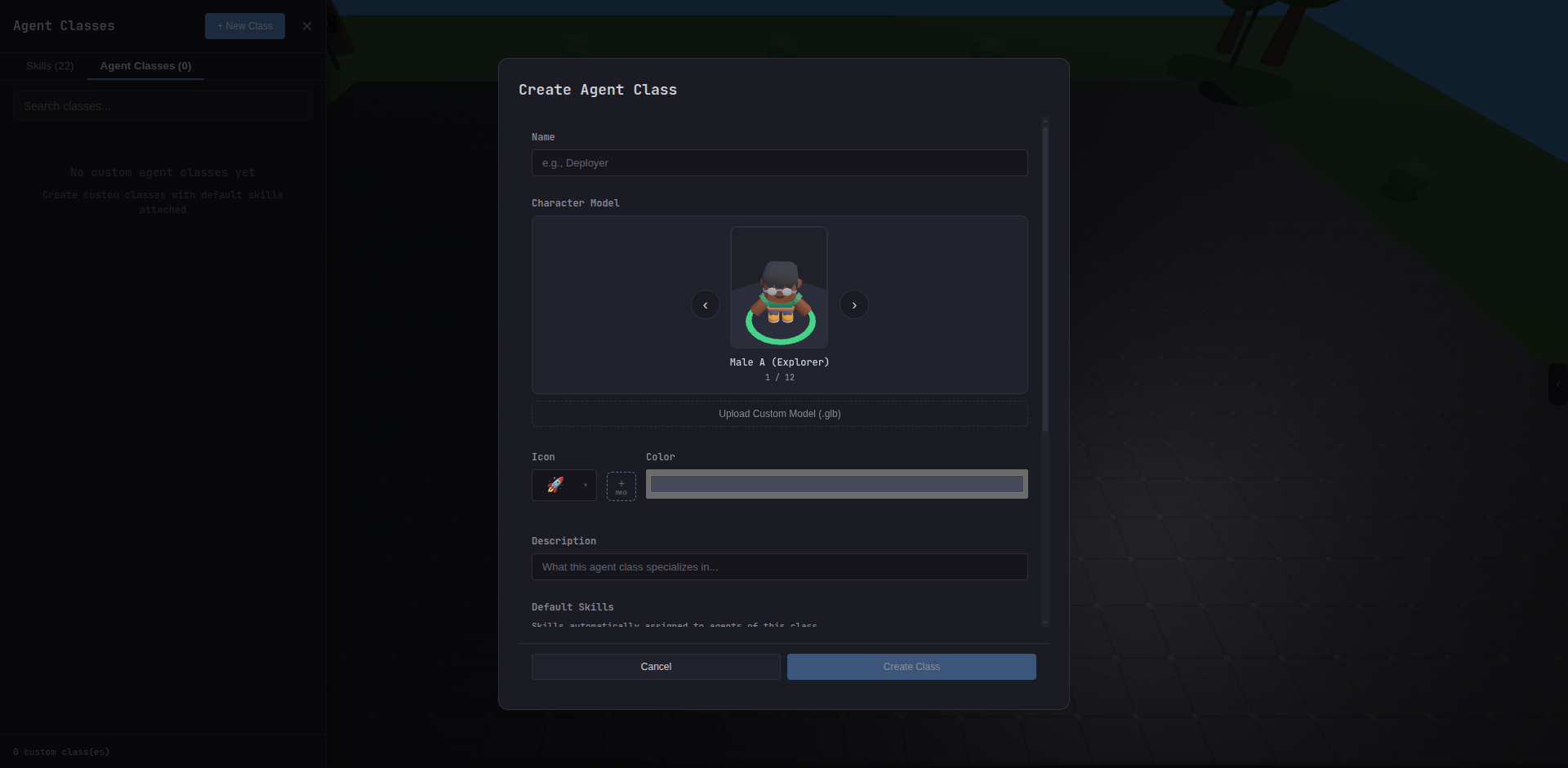
1. Tide Commander base rules (always present)2. Global System Prompt (Settings → System Prompt)3. Class instructions ← this layer4. Individual agent instructions5. Skills + Agent IdentityYou can create your own classes from the Classes tab in the Skills panel. Custom classes support everything the built-ins support, plus the ability to upload a custom GLB model with your own animation mapping.
Custom Classes & 3D Models
Full authoring guide — GLB upload, animation mapping, scale, offset. See Custom Classes.
Skills
What skills are and how they layer on top of class instructions. See Skills.