
System Prompt
The System Prompt is a free-form block of instructions that Tide Commander injects into every agent’s prompt, regardless of class or individual configuration. It is the right place for team-wide rules, coding conventions, project context, or standing orders that every agent should always know.
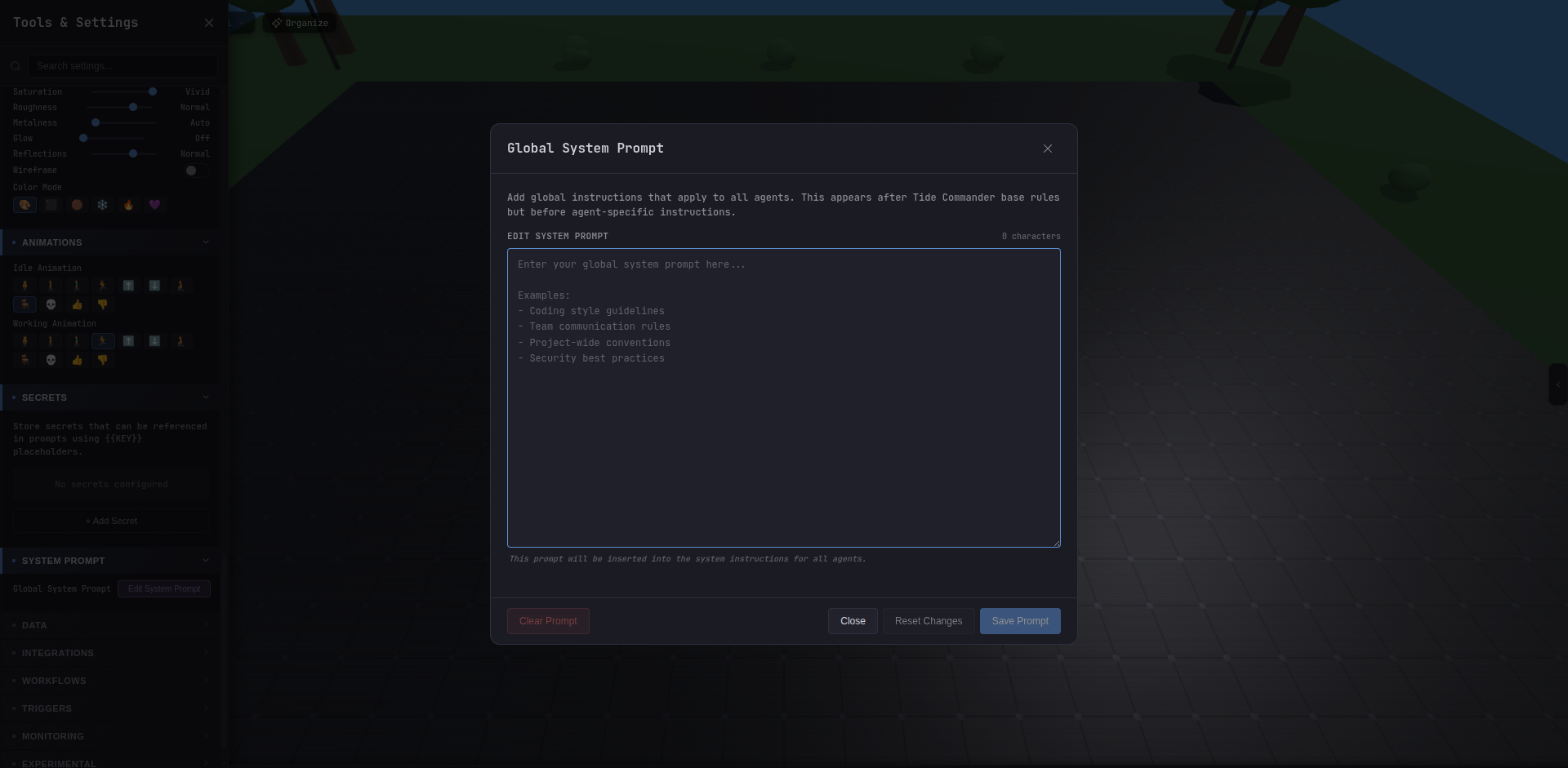
Setting the system prompt
Via the UI
- Open Settings (gear icon or Alt + ,).
- Scroll to the System Prompt section.
- Click Edit System Prompt.
- Type or paste your instructions into the large textarea editor.
- Click Save.
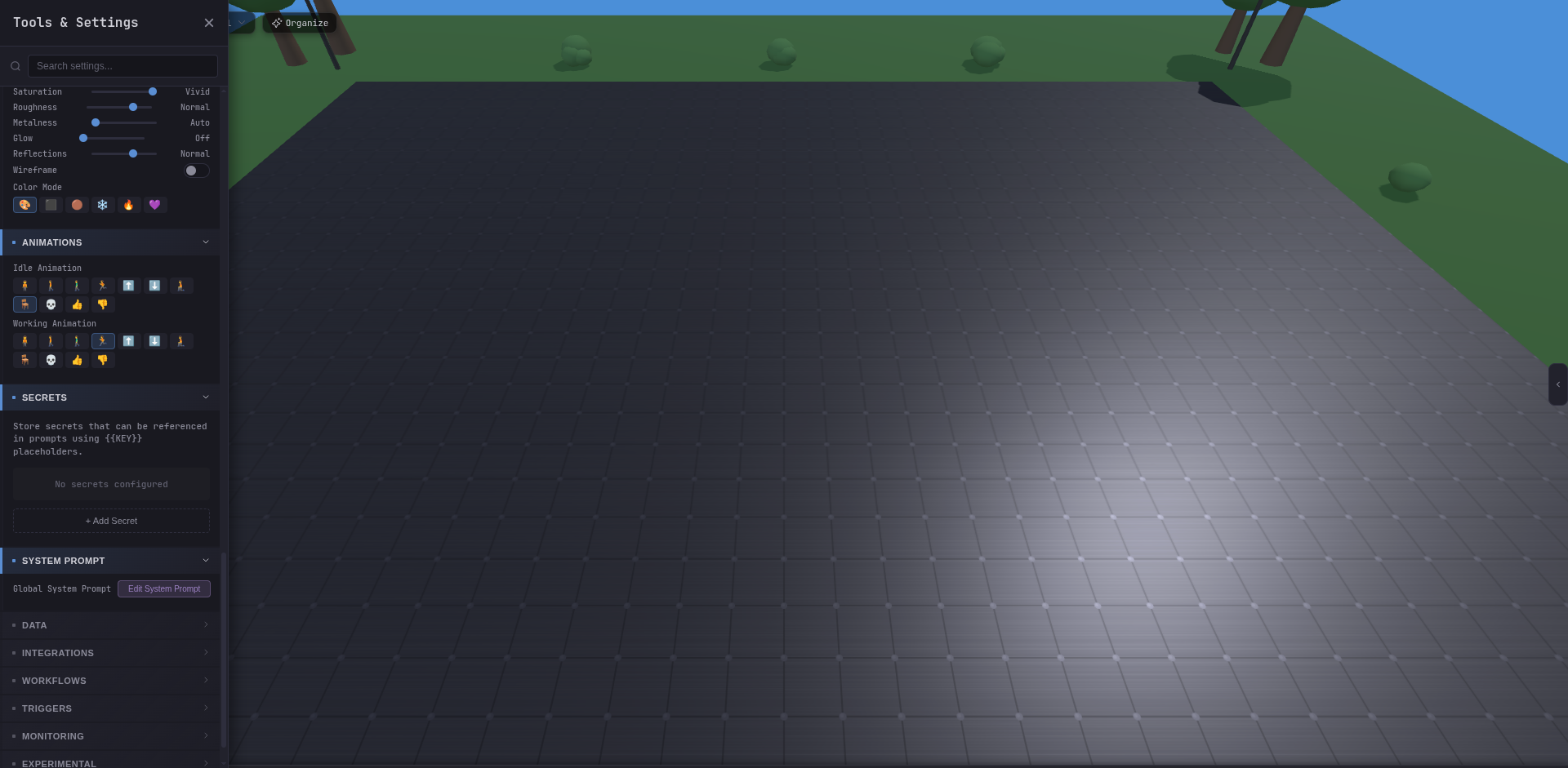
The modal shows a live character count, tracks unsaved changes with a dirty-state indicator, and requires an explicit Save so you never lose edits accidentally. Press Escape to close without saving; you will see a warning if there are unsaved changes.
Via the REST API
curl -s http://localhost:5174/api/agents/system-settings/prompt \ -H "X-Auth-Token: TOKEN"curl -s -X POST http://localhost:5174/api/agents/system-settings/prompt \ -H "Content-Type: application/json" -H "X-Auth-Token: TOKEN" \ -d '{"content":"Always use TypeScript strict mode. Prefer functional components."}'curl -s -X DELETE http://localhost:5174/api/agents/system-settings/prompt \ -H "X-Auth-Token: TOKEN"Storage location
The prompt is stored as JSON at:
~/.local/share/tide-commander/system-prompt.jsonFile format:
{ "content": "Your instructions here.", "updatedAt": 1714000000000, "version": "1.0"}The path respects the XDG_DATA_HOME environment variable. If you have it set, the file lives at $XDG_DATA_HOME/tide-commander/system-prompt.json instead.
What to put in it
Good candidates for the system prompt:
- Project context — repo name, primary language, framework, package manager.
- Coding conventions — file naming, import style, test naming, comment policy.
- Standing orders — “never commit directly to
main”, “always run tests before reporting done”. - Workflow rules — which branches to use, how to open PRs, ticket reference format.
- Tool restrictions — “do not install new npm packages without asking first”.
Keep it focused. A long, vague system prompt crowds out space for task-specific context and dilutes signal for each agent. A crisp, scannable list outperforms paragraphs of prose.
Config export / import
The system prompt is included when you export your Tide Commander configuration from Settings → Data. Importing that config file on another machine restores it automatically, making it easy to share team conventions across setups.
Where it sits in the prompt stack
The system prompt is layer 2 of five:
1. Tide Commander base rules (file path conventions, skill framework)2. ► System Prompt ← this setting3. Class instructions (default rules per agent class)4. Individual agent instructions5. Skills & agent identity (runtime context, task label, tracking)See Prompt Stacking for the full hierarchy and how layers interact.