Agents
Any spawned agent by name, ID, or class. Picks open the Agent Inspector.
Spotlight is Tide Commander’s command palette. It’s a fuzzy-find overlay that opens over any view and can take you to anything the app knows about — an agent by name, a file in a working directory, a settings section, an area, a building, or a direct action like “Spawn Boss Agent”.
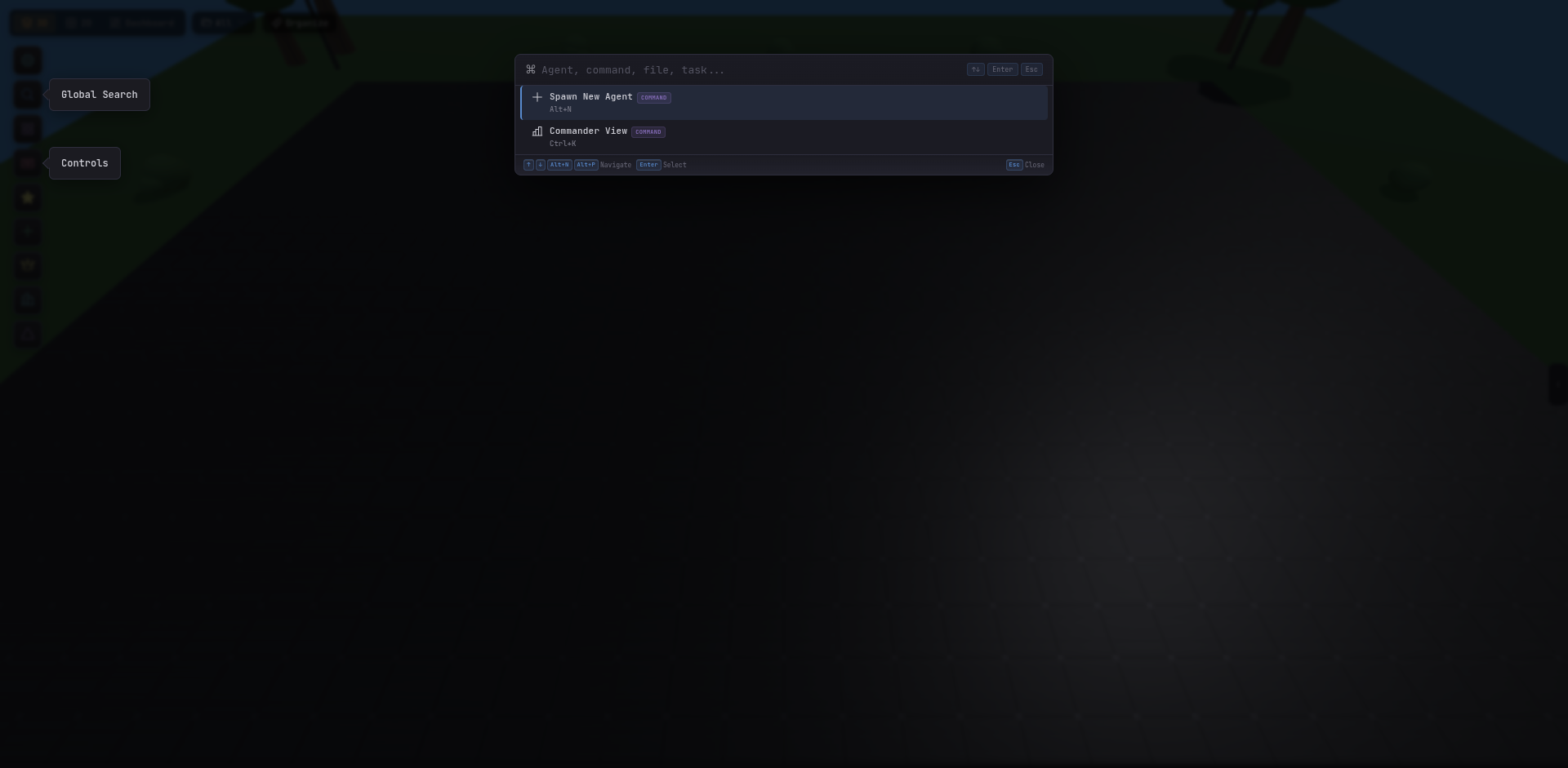
The palette closes itself after a selection, so you can open it, pick a target, and be there in two keypresses.
Agents
Any spawned agent by name, ID, or class. Picks open the Agent Inspector.
Actions
“Spawn New Agent”, “Draw Area”, “Open Settings”, “Toggle Sidebar”, “Switch to Commander View” — anything in the toolbar.
Files
Files inside any attached area / agent working directory. Picks open a diff-aware preview.
Settings sections
“Scene”, “Permissions”, “System Prompt”, “Secrets” — jump directly to a searchable settings section.
Buildings
Your server logs, database query editors, Docker containers, and links.
Areas
Jump to an area and auto-filter the sidebar to the agents inside it.
Spotlight is the closest thing to “global” in a multi-agent UI. Instead of hunting through the sidebar or remembering which view hosts which action, you open the palette and type. For power users it replaces ~80% of the toolbar; for new users it’s the fastest way to discover what the app can do.