Feature Overview
Tide Commander is a lot of surfaces stitched into one app. This page walks every major feature with a screenshot and one-line description. Deep-dive pages are linked for anything that needs more than two paragraphs.
View modes
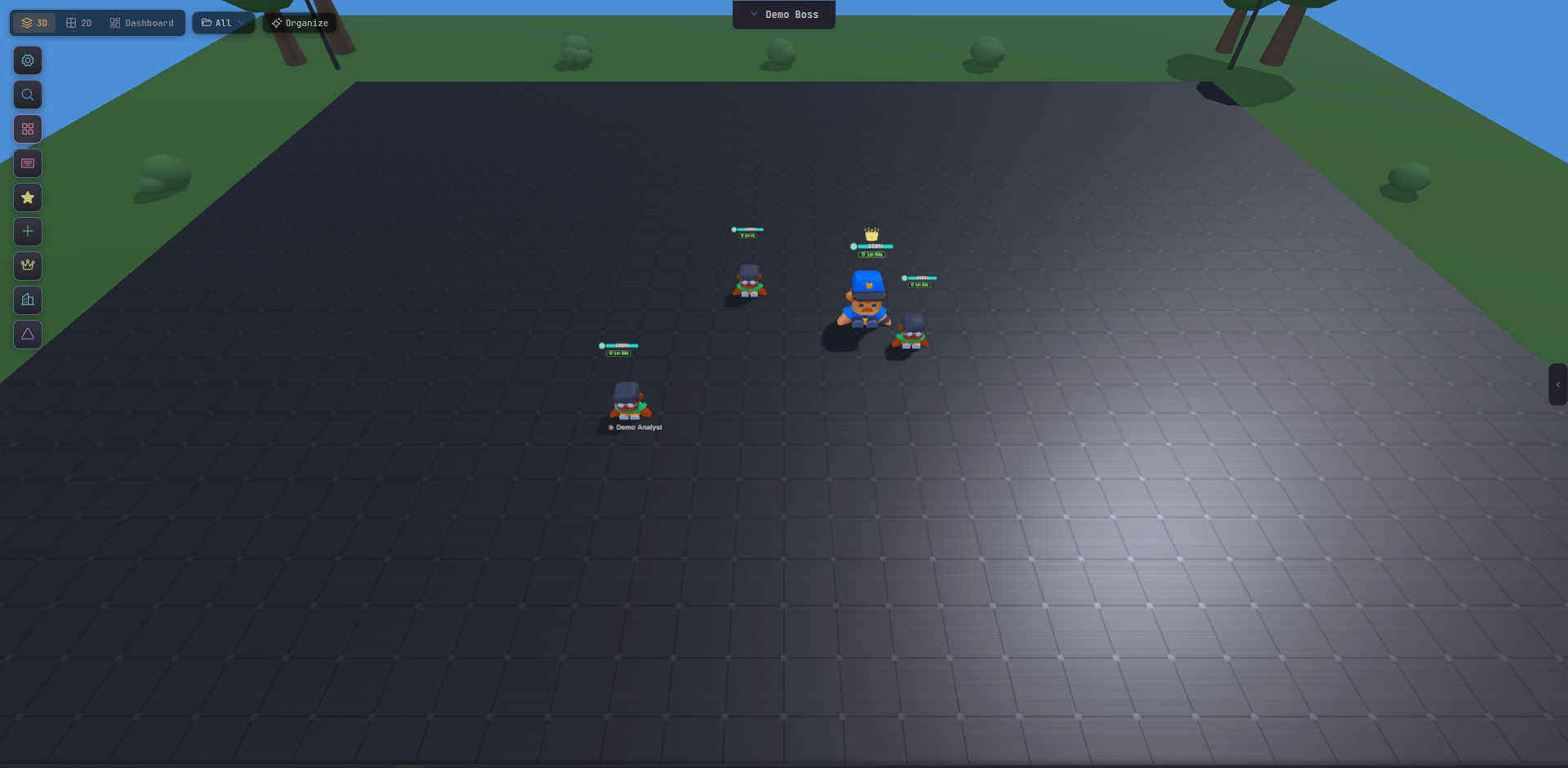
Four ways to look at your team. Cycle with Alt + 2.
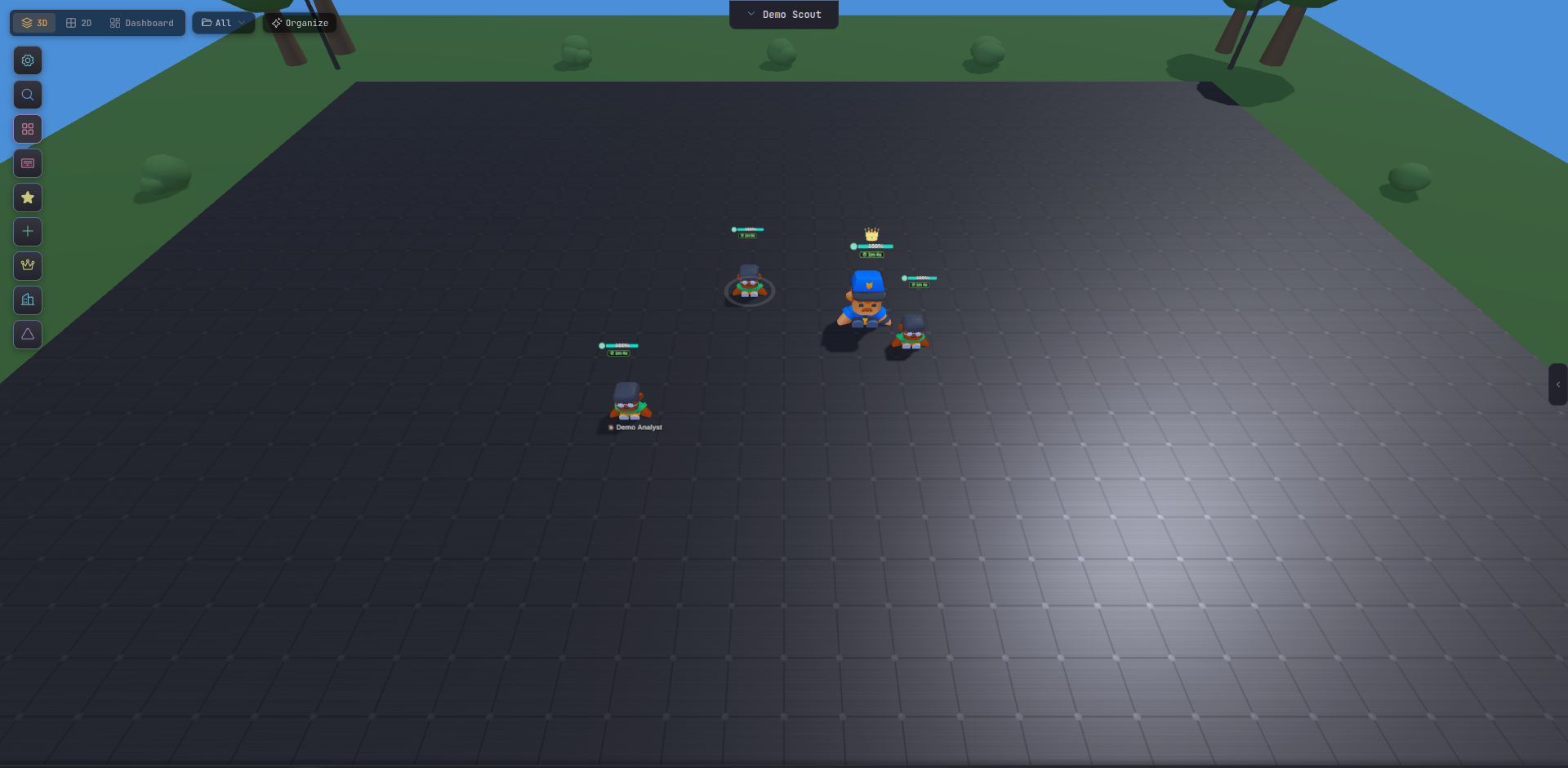
3D Battlefield
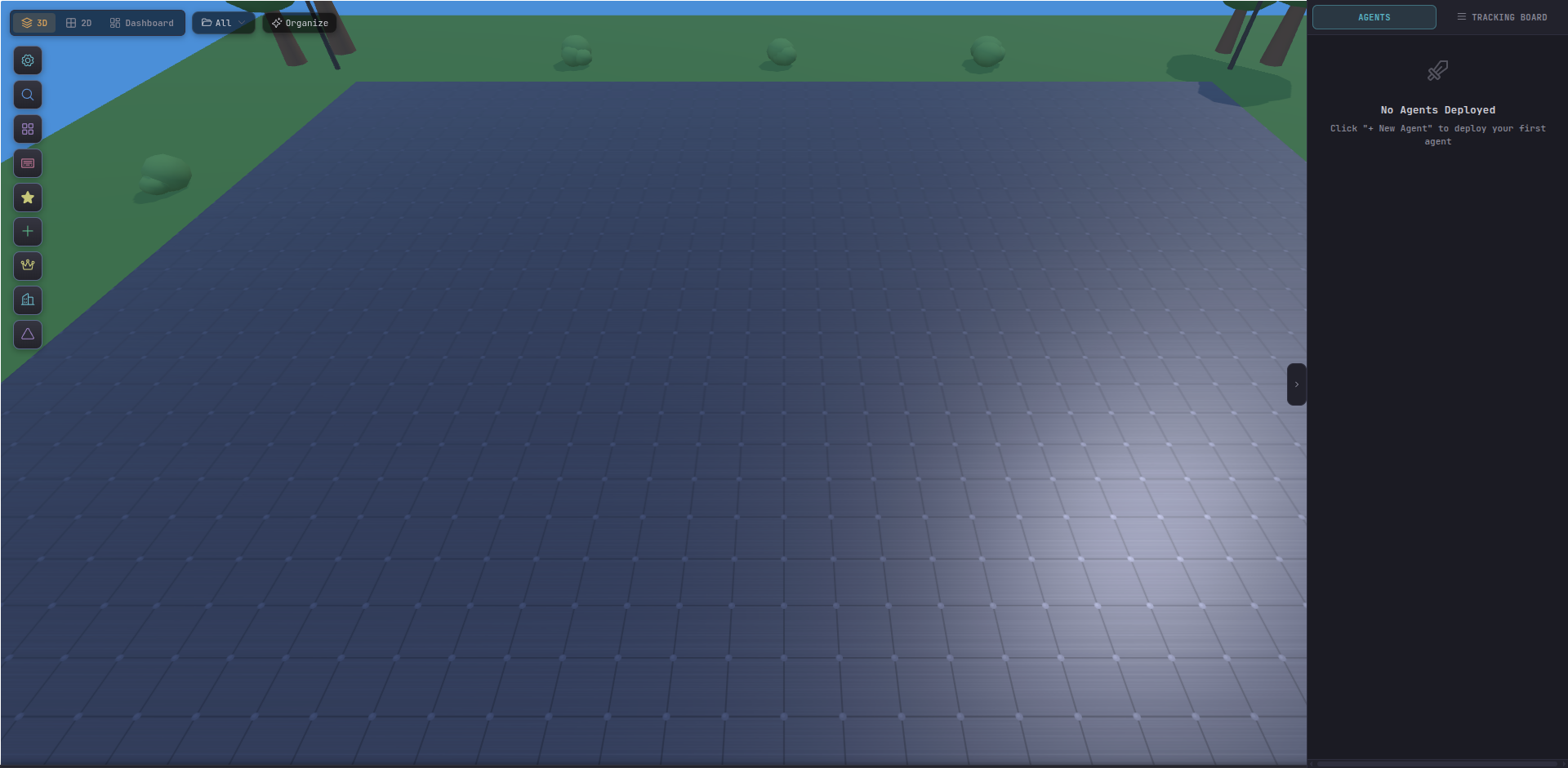
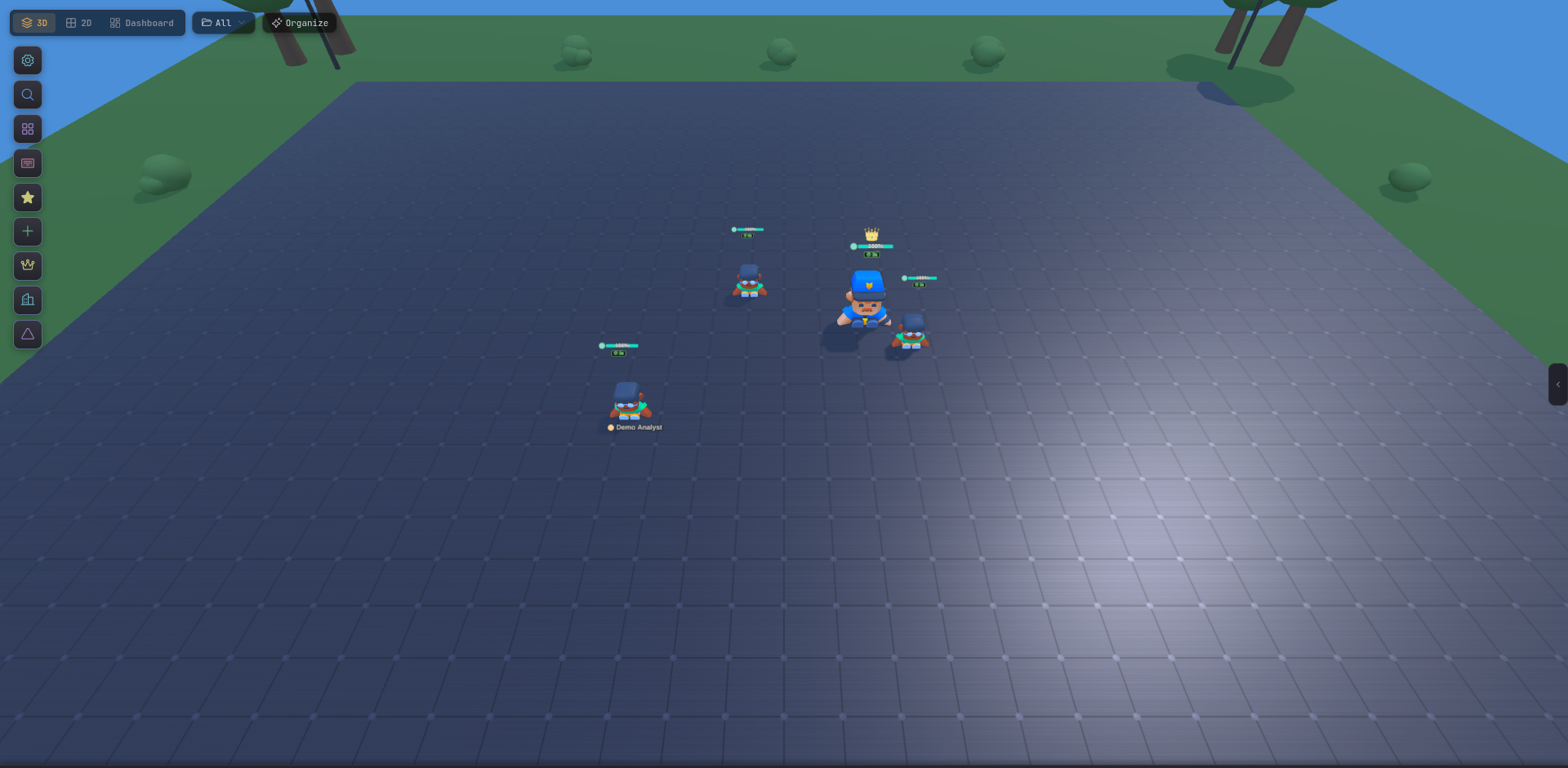
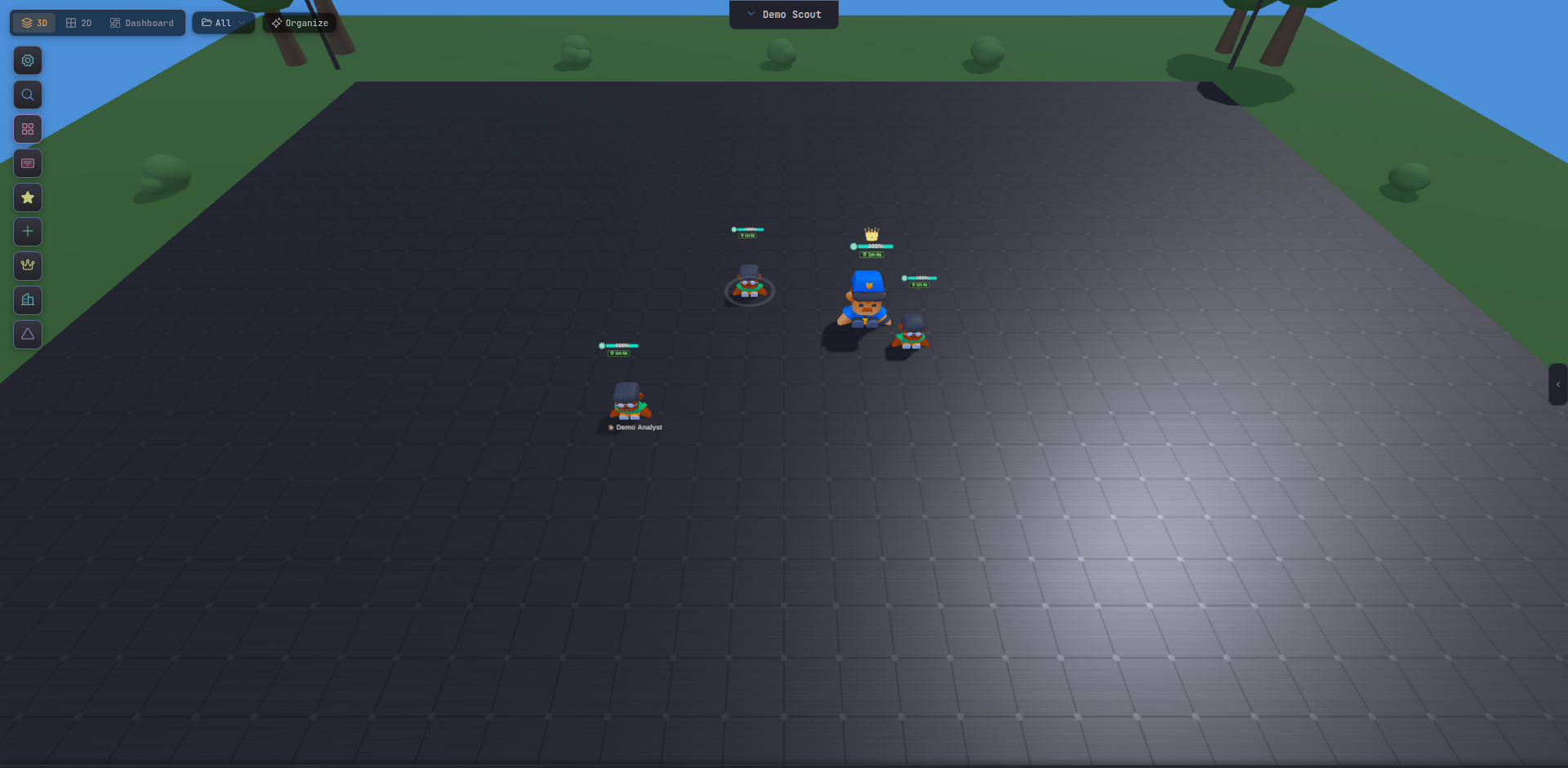
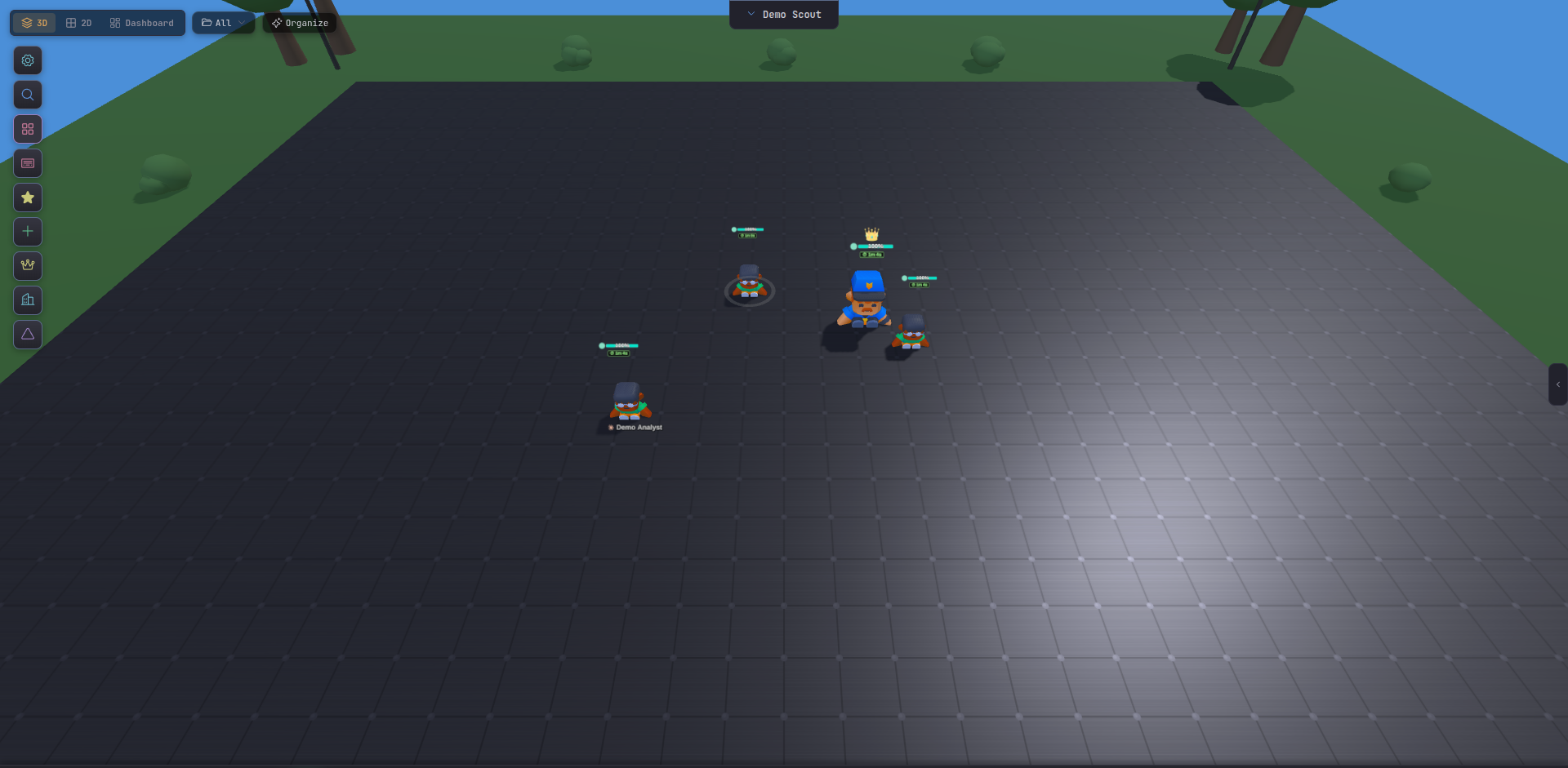
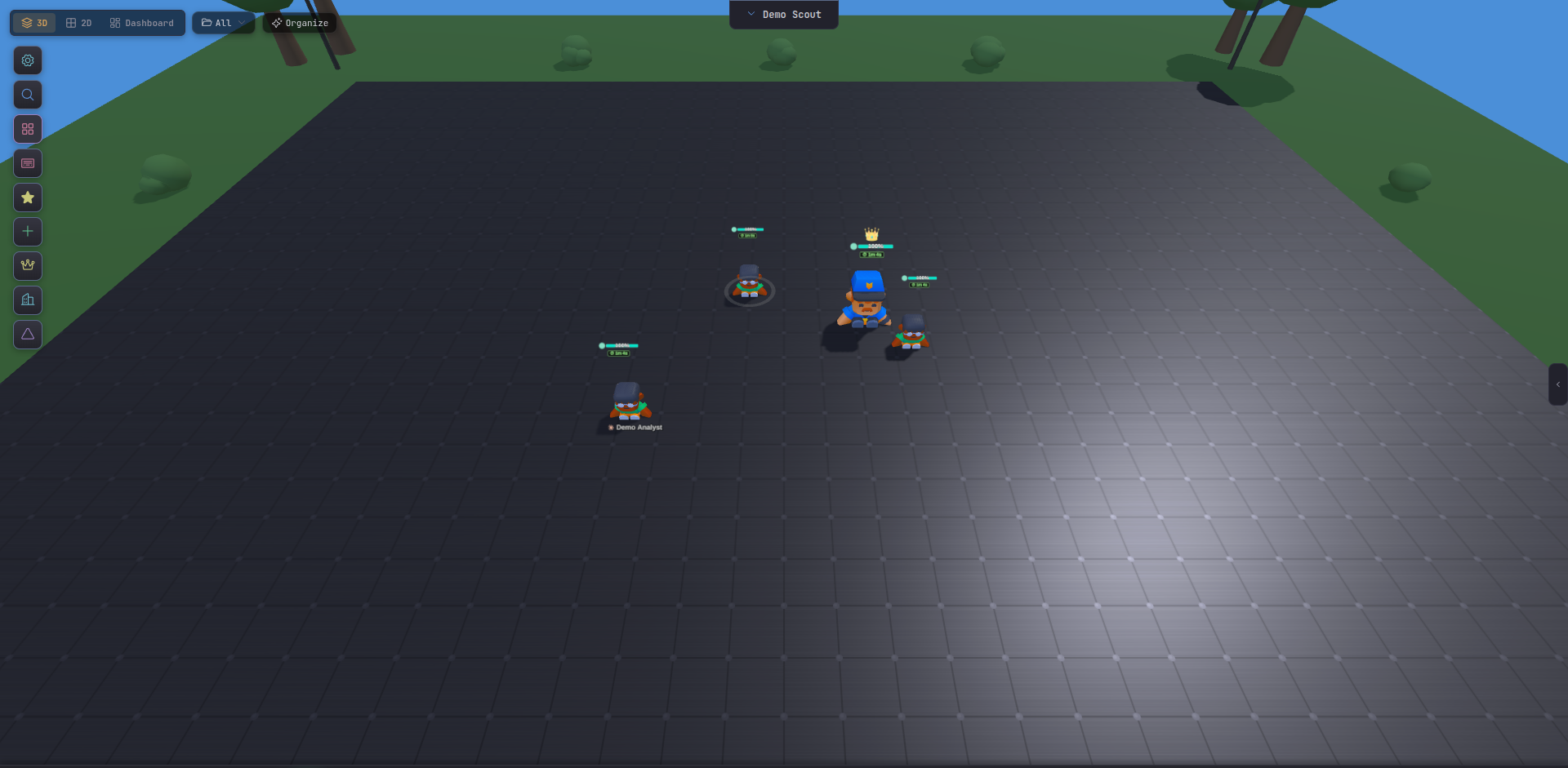
The default. An isometric Three.js scene where agents are characters you select, move, and command RTS-style. Buildings occupy tiles with real functionality. Terrain, lighting, and post-processing are configurable.
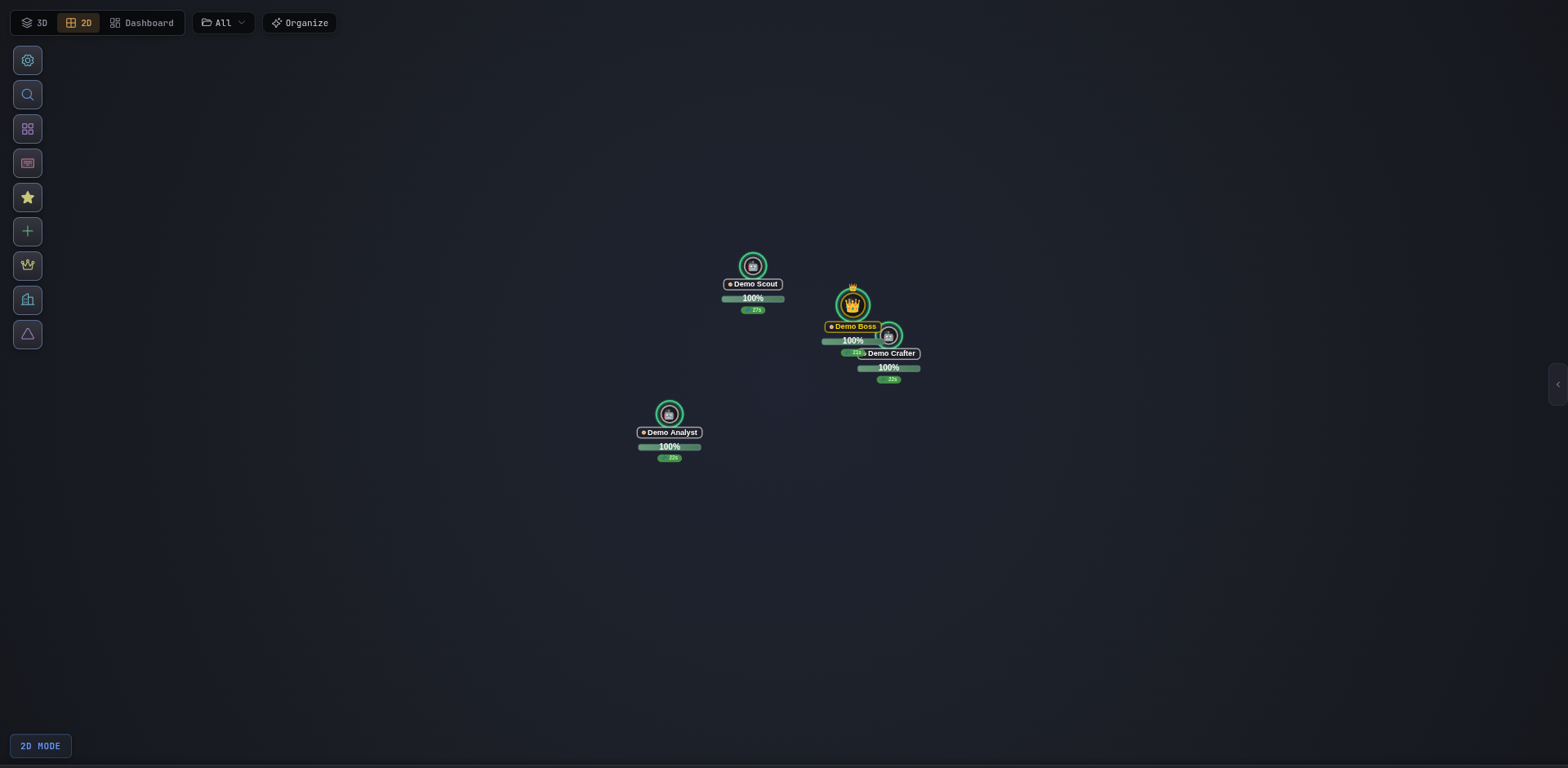
2D Canvas
Lightweight top-down rendering for lower-end hardware or when you just want the map without the fireworks. Same RTS controls, same commands.
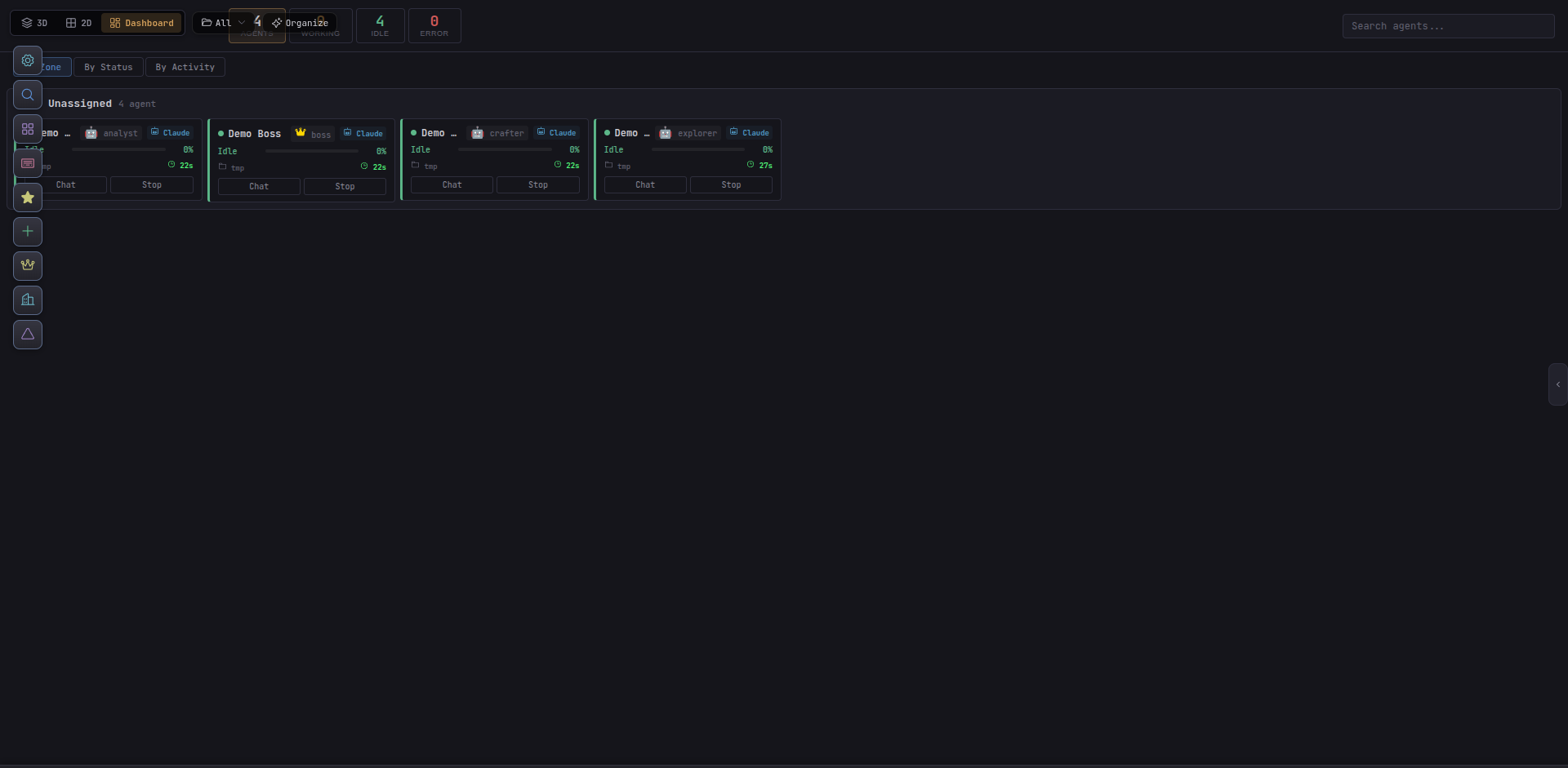
Dashboard
Status cards, building summaries, and run-time metrics. Good for stand-up screen-shares or always-on displays.
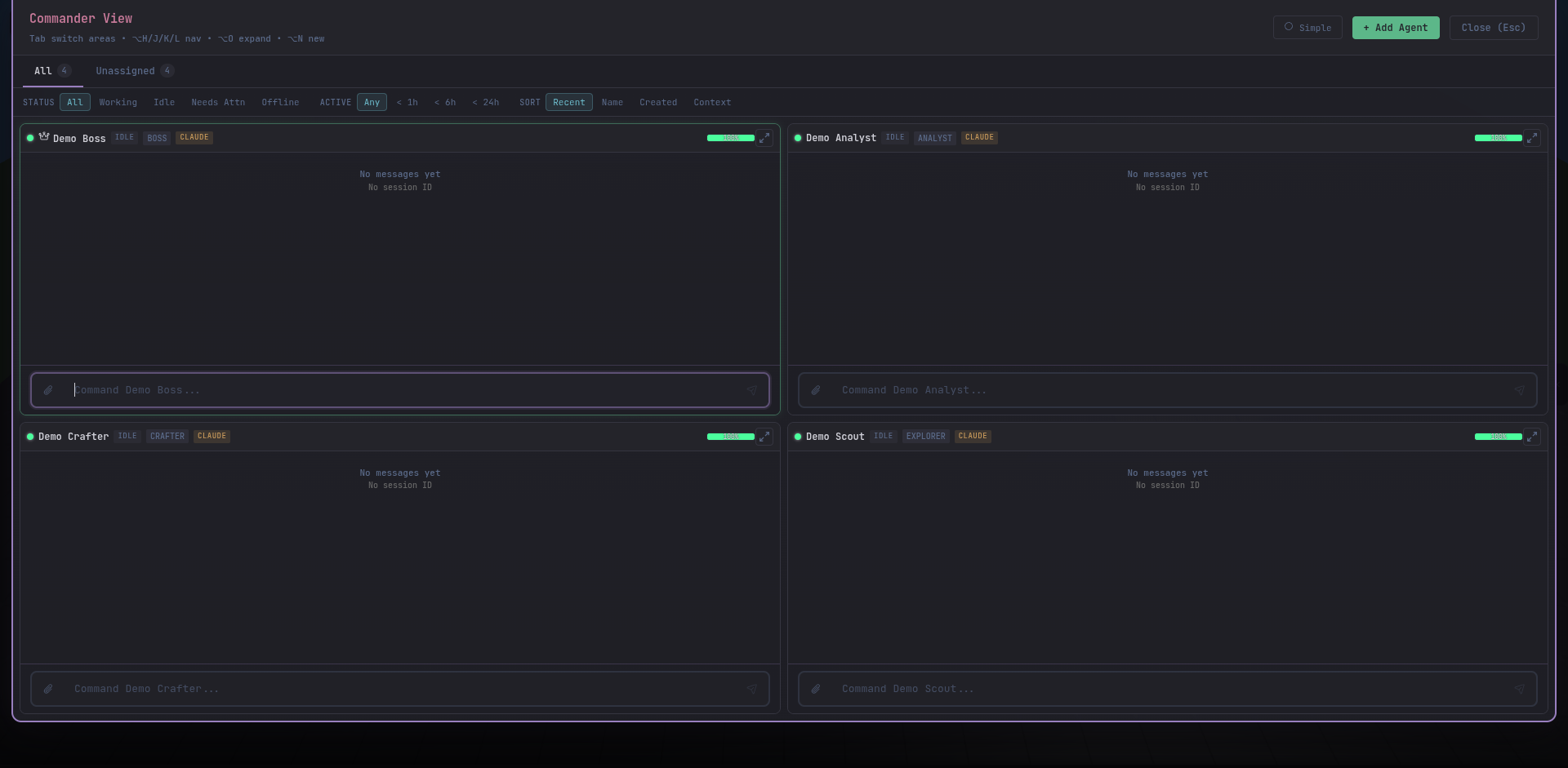
Commander View
Every agent’s terminal in a single grid, grouped by area. Read them all at once, type into any one, and send bulk commands to a selection.
Agent surfaces
Agent Inspector
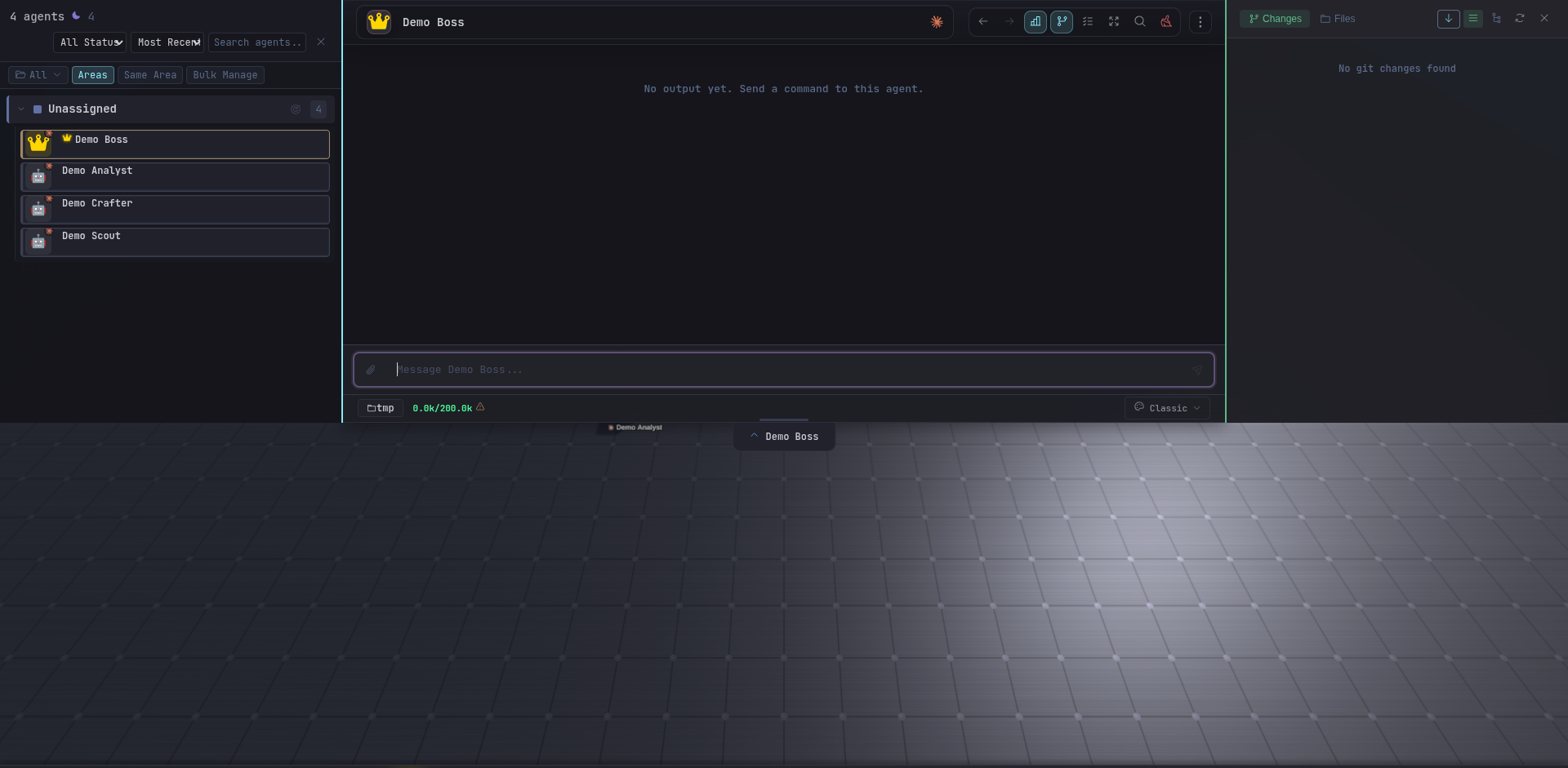
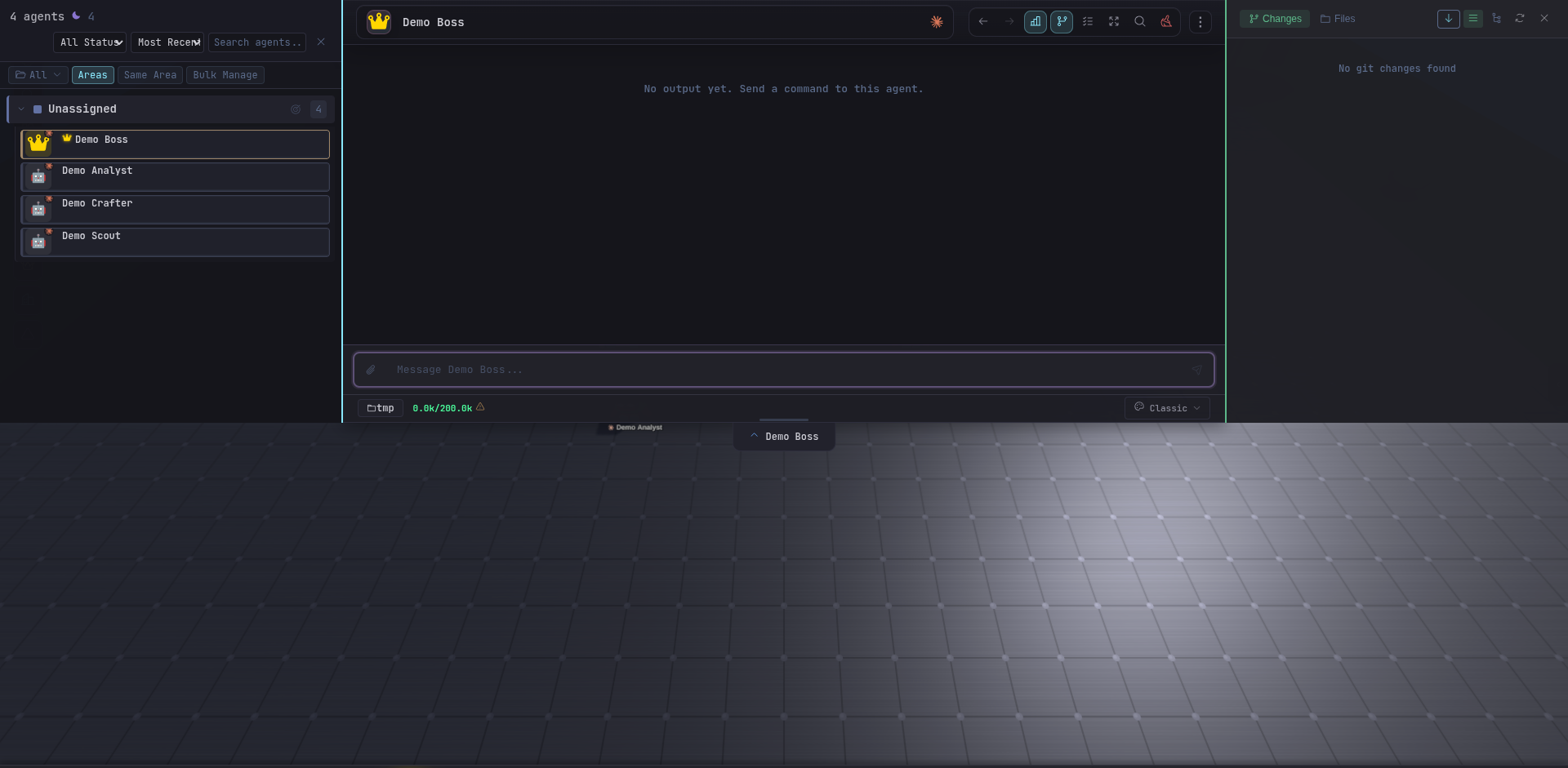
Click any agent to open its inspector. Live conversation stream, tool-call formatting, file-diff peeks, and per-agent controls.
Tracking Board
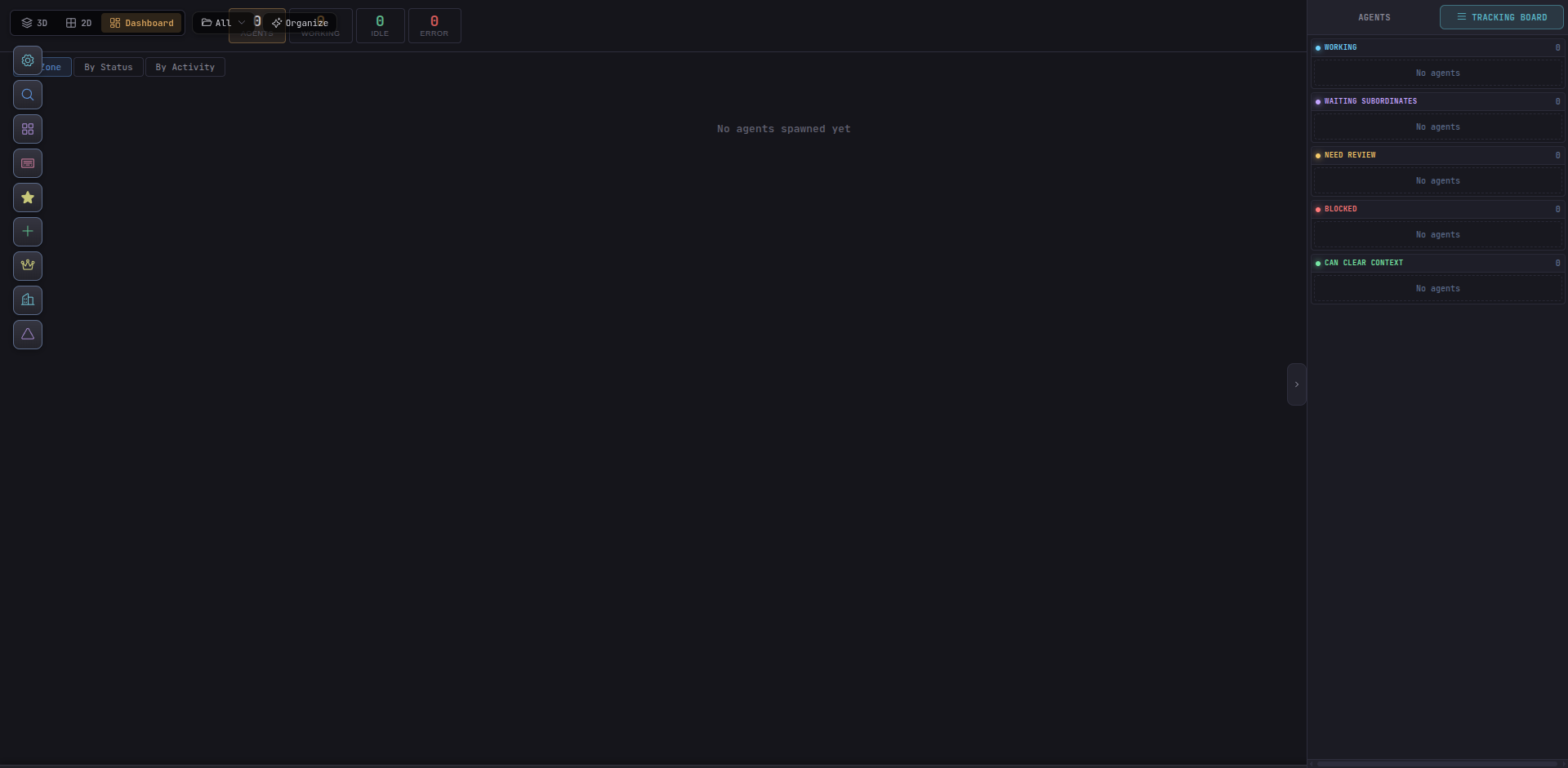
Per-agent (or global) task board showing tracking-status updates: working, blocked, waiting-subordinates, need-review, can-clear-context.
Git Changes
Every file the agent touched, grouped by working directory, with inline diff rendering. Click a file to see the full diff without leaving Commander.
Boss Inspector — Team
On a Boss, the Team tab surfaces all subordinates and their current delegations.
Edit Agent
Change name, class, working directory, permission mode, or model for a running agent — no respawn required.
Modals
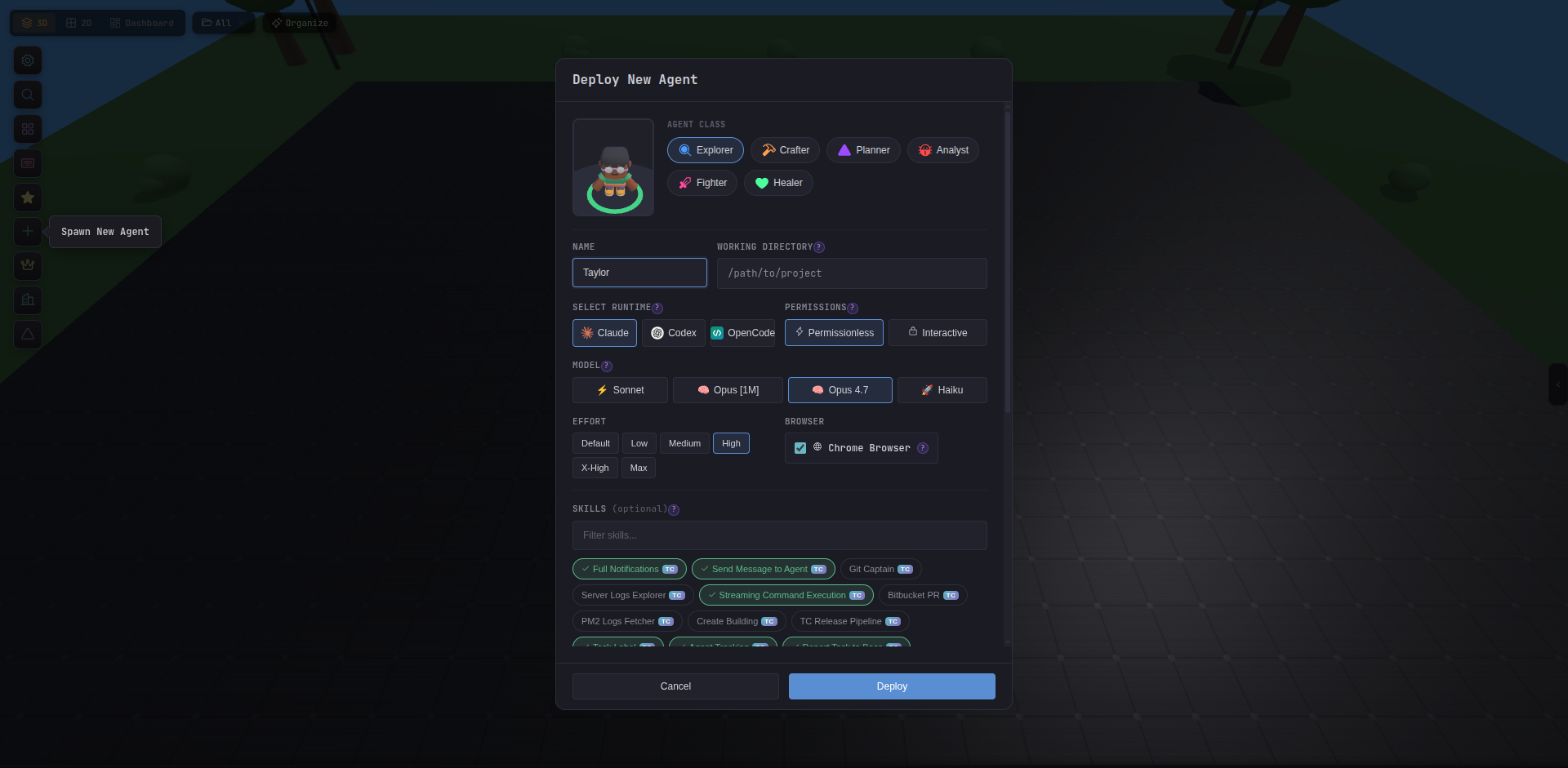
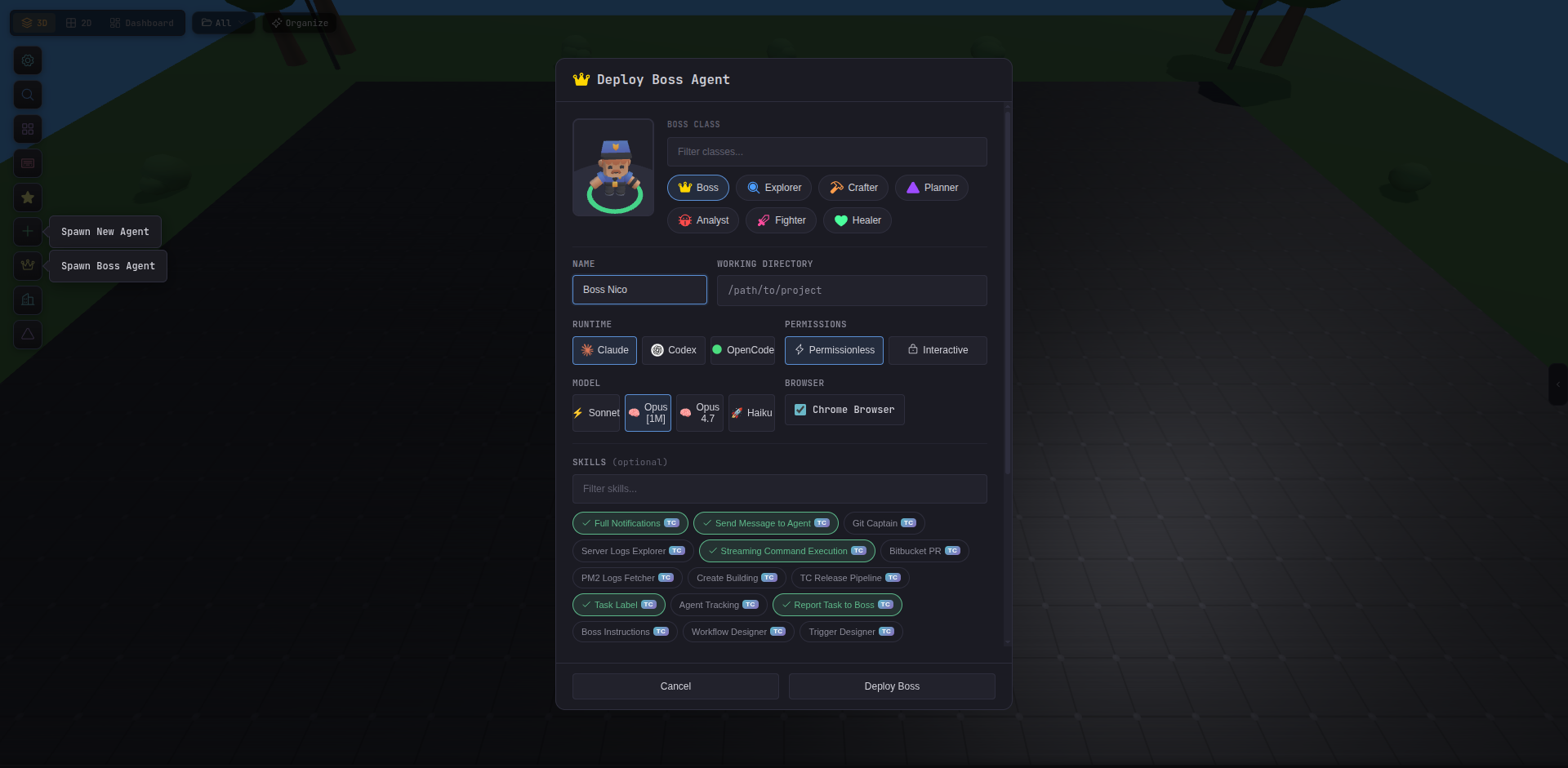
Spawn Agent / Spawn Boss
Pick provider, class, working directory, permission mode. Bosses additionally let you attach subordinates at creation time.
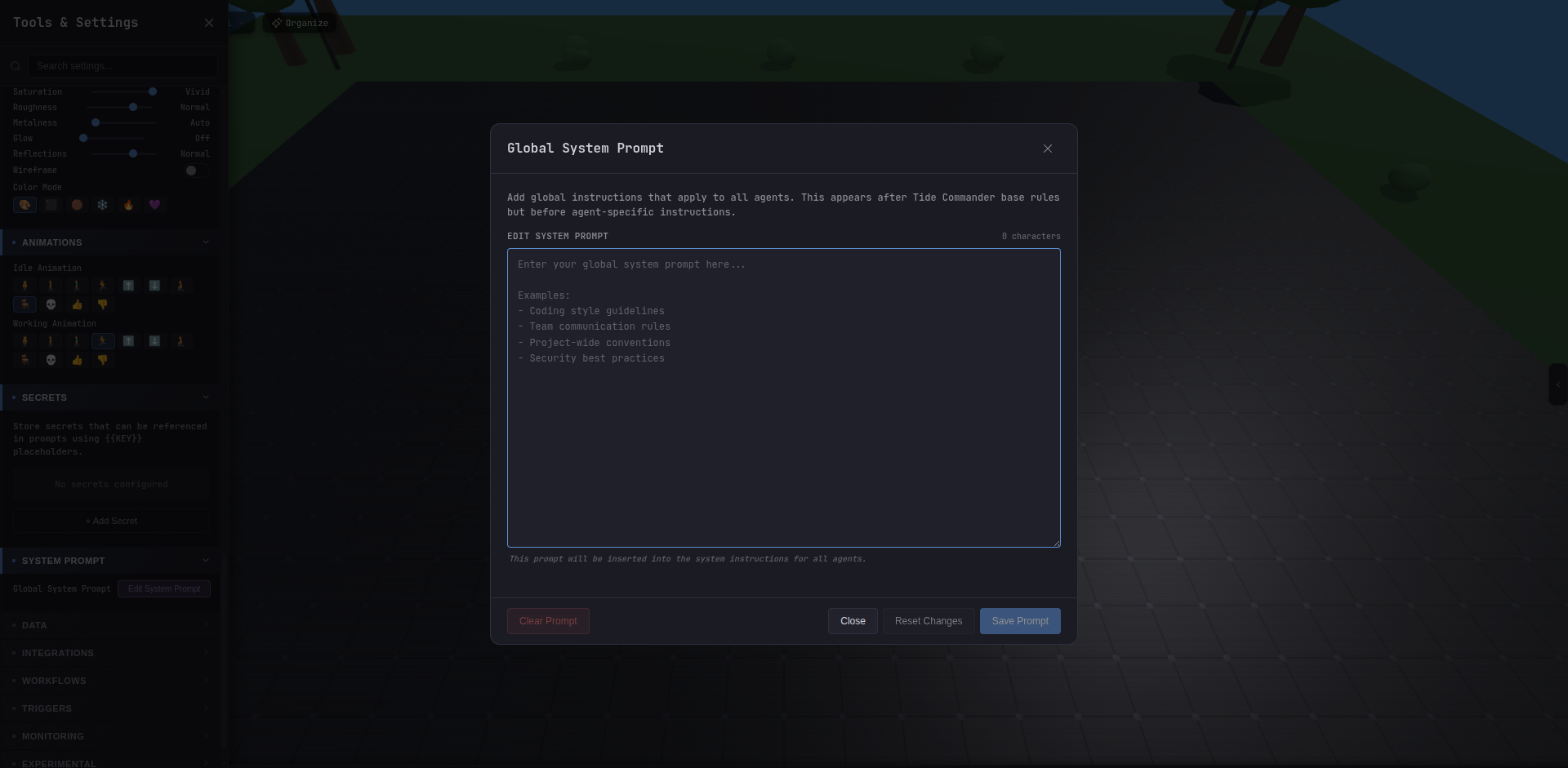
System Prompt
Global custom prompt editor — applies to every agent automatically. Lives in ~/.local/share/tide-commander/system-prompt.json.
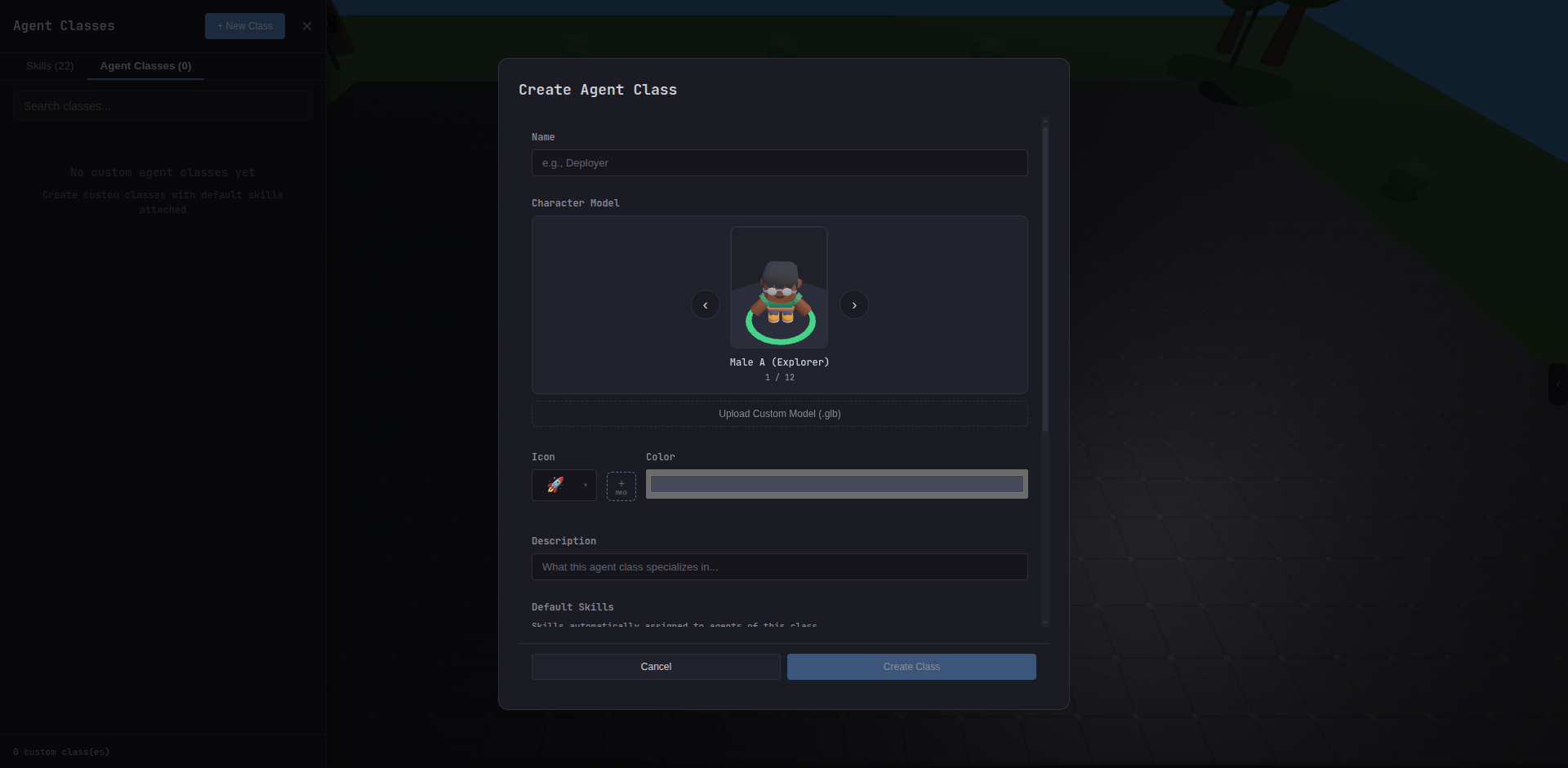
Create Agent Class
Bundle a 3D model, instructions, and default skills into a reusable class.
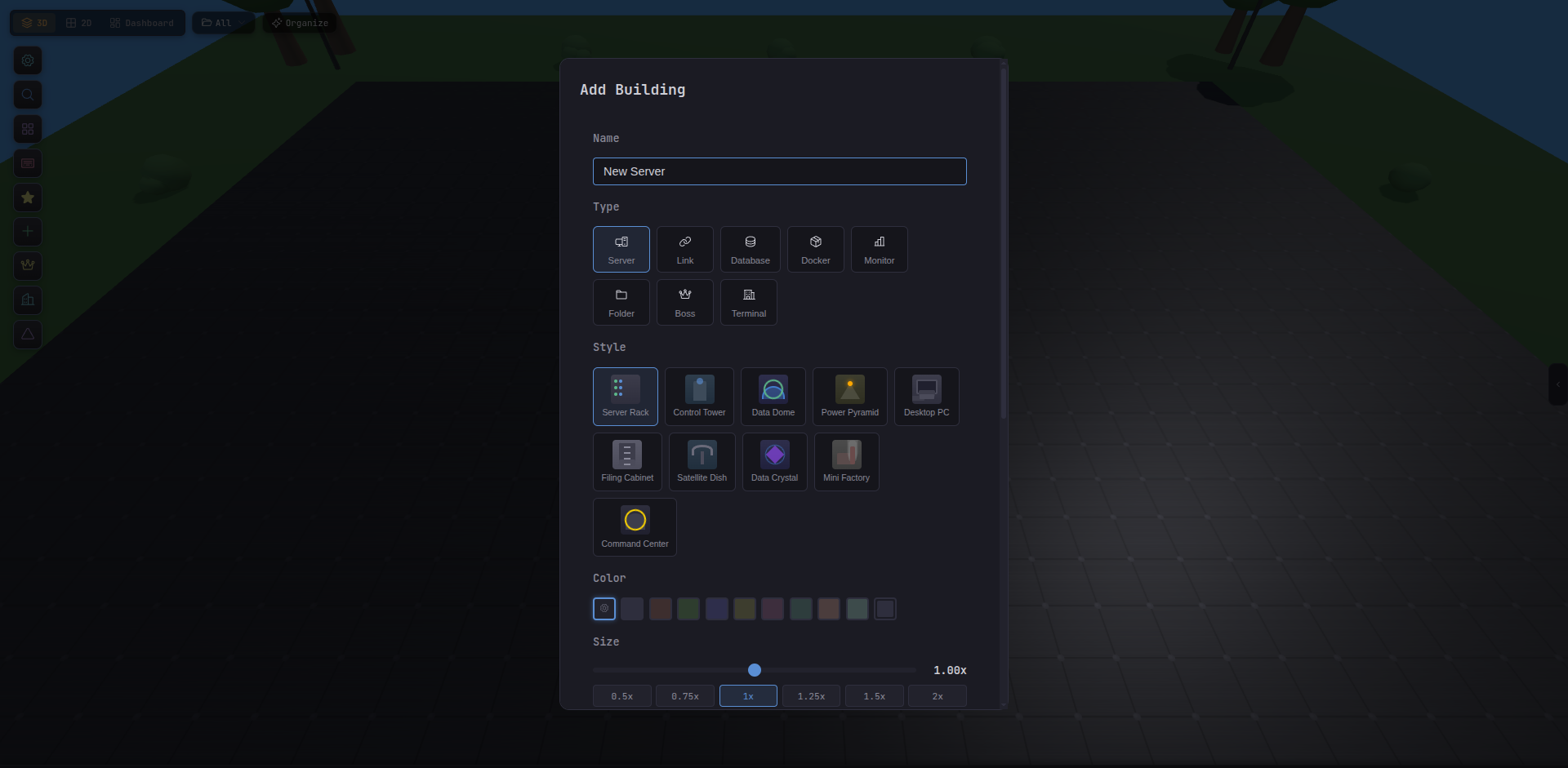
Add Building
Drop a server, database, Docker container, link, or folder onto the map.
Draw Area
Rectangle tool for grouping agents and attaching folders.
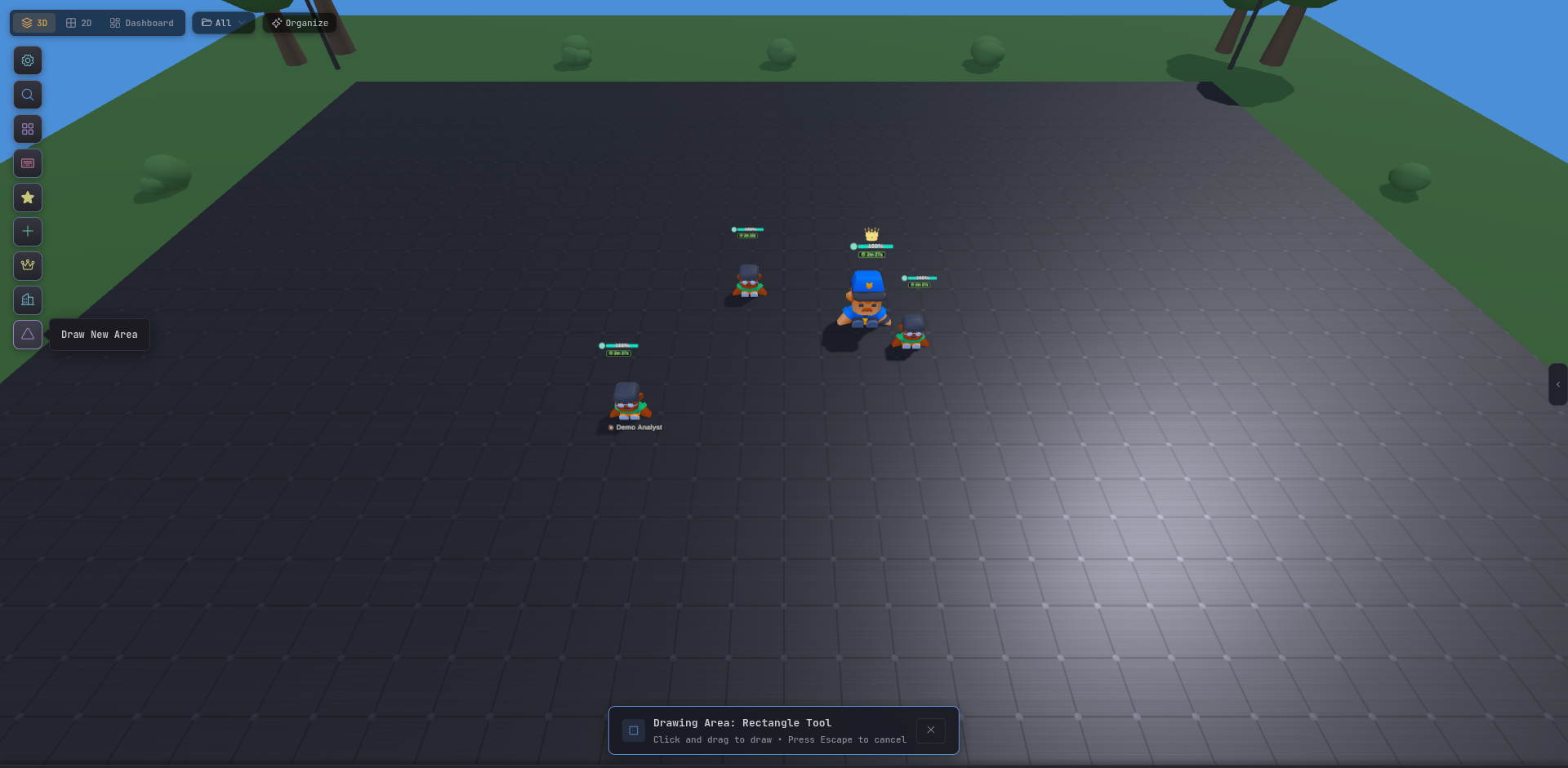
Global shells
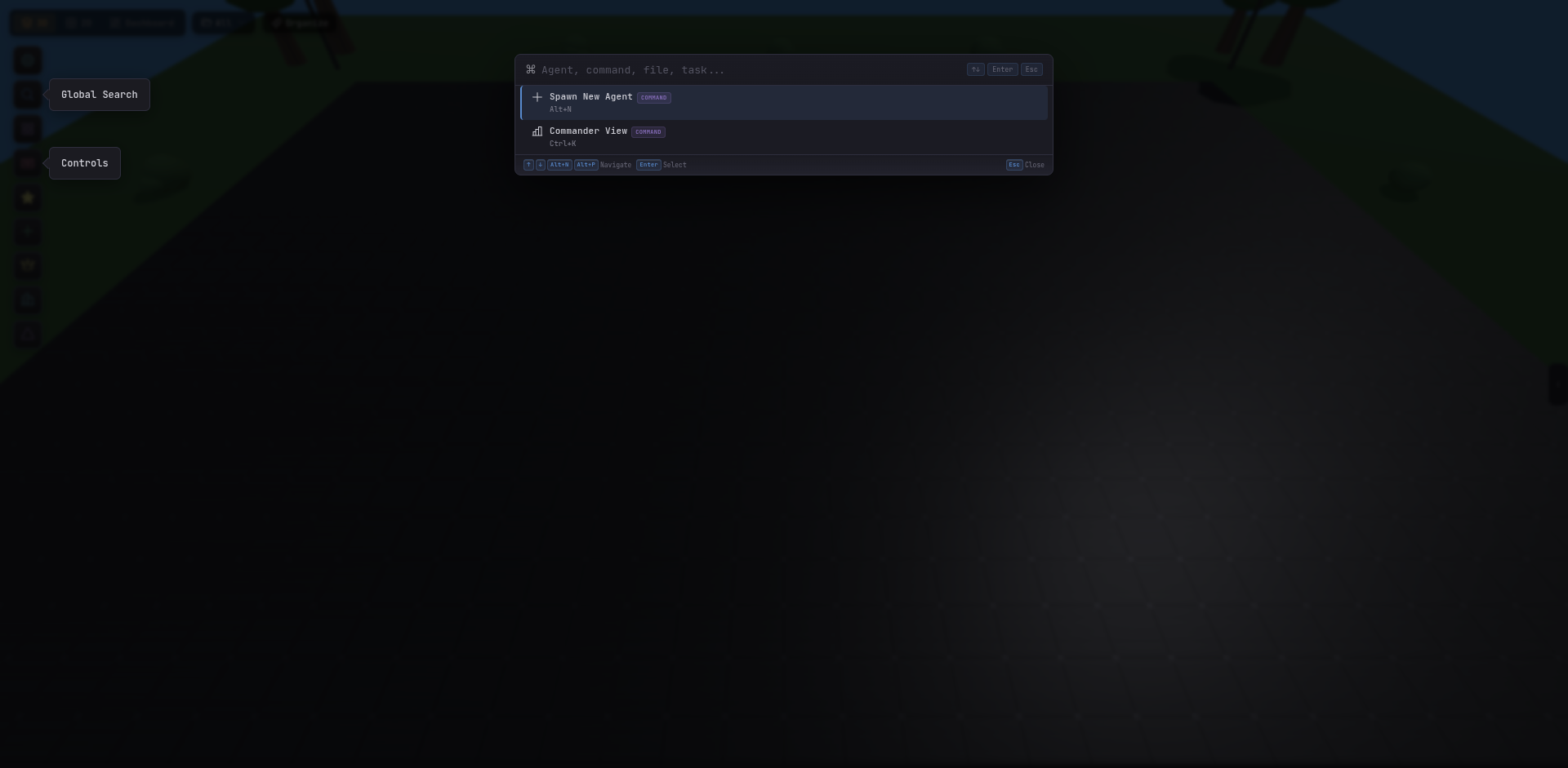
Spotlight Search
Ctrl + K or Alt + P. Fuzzy-find agents, files, actions, areas, and settings from anywhere.
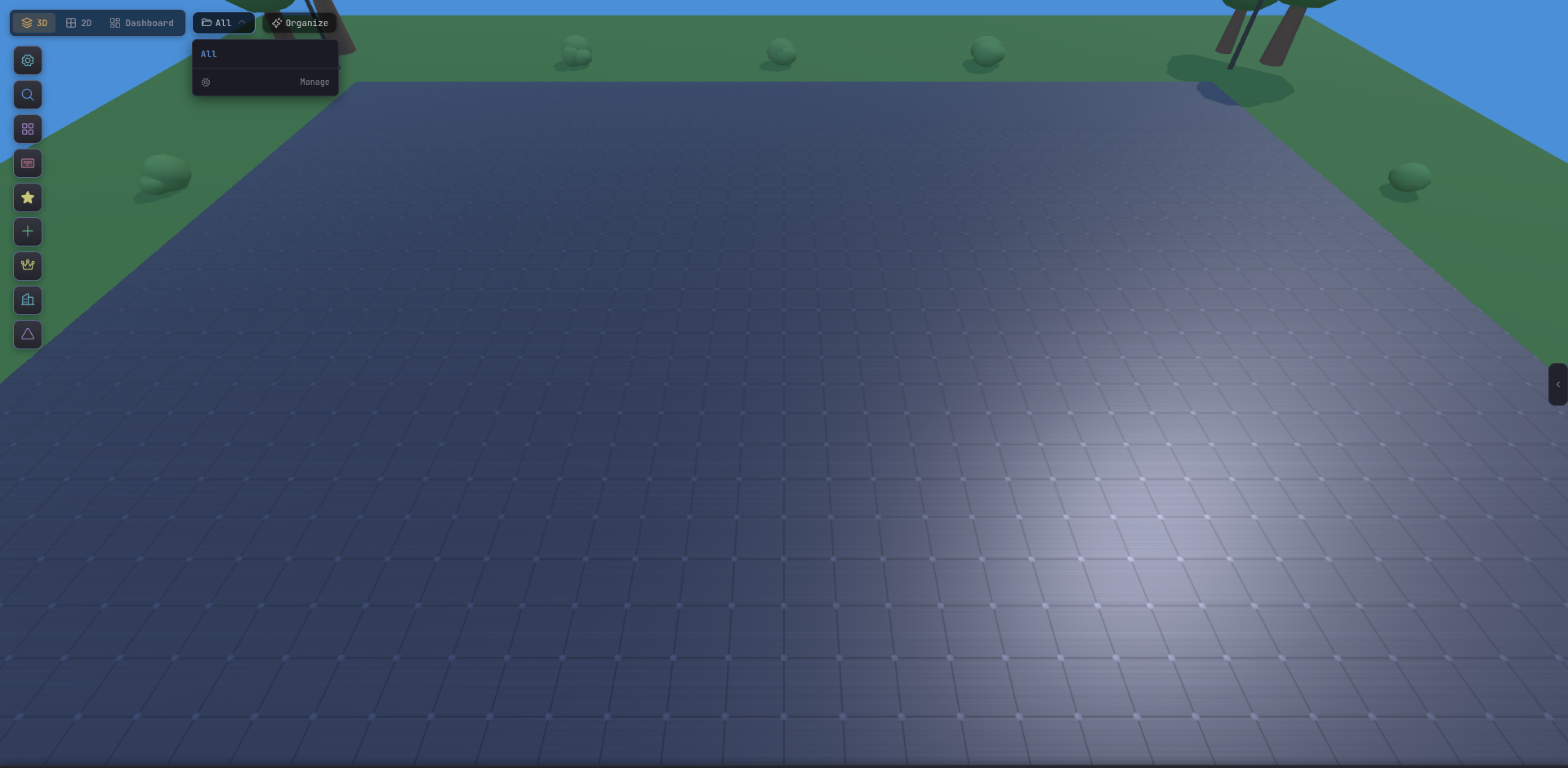
Workspaces menu
Jump between workspaces, show/hide archived areas, filter what’s on screen.
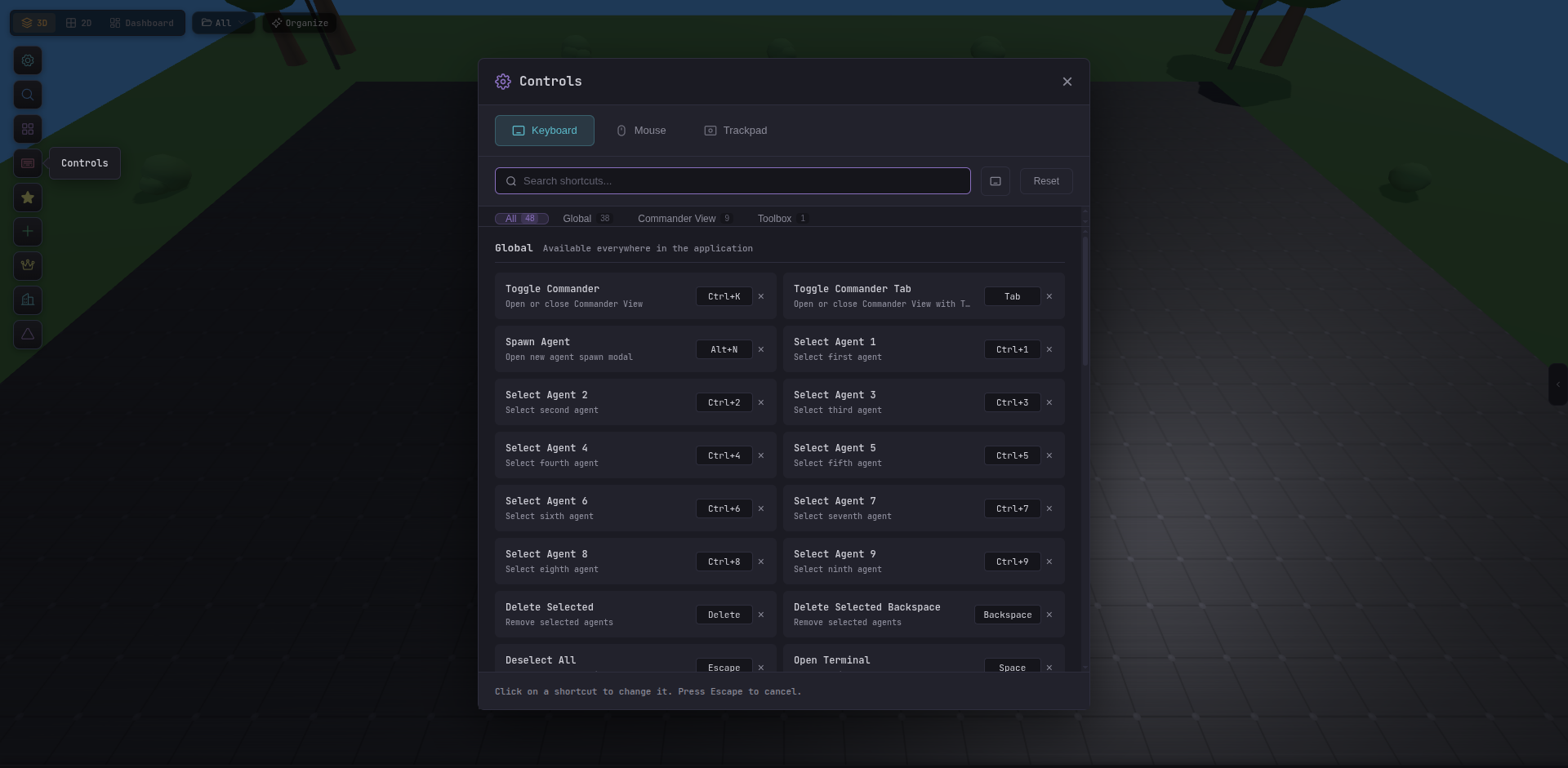
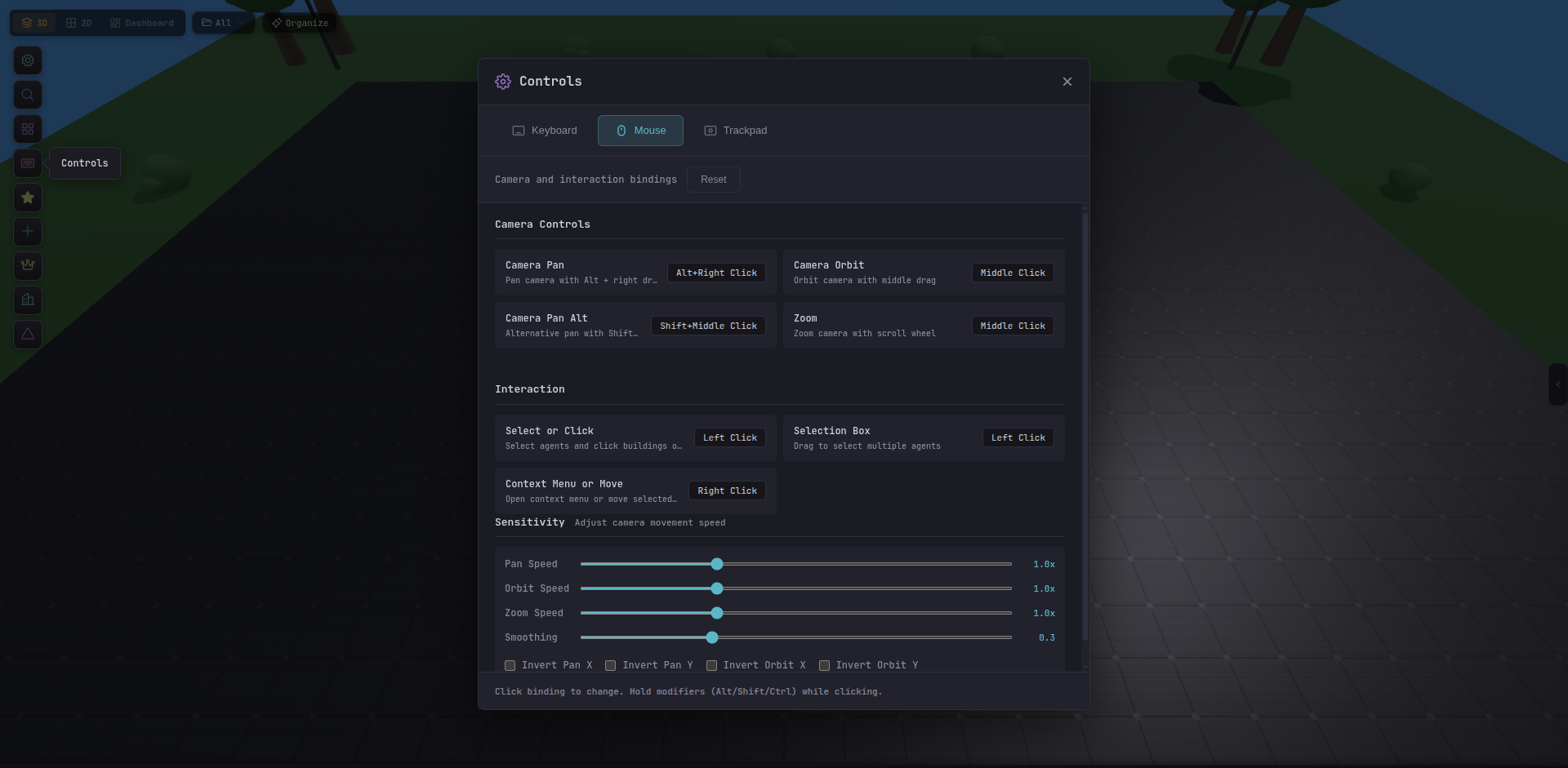
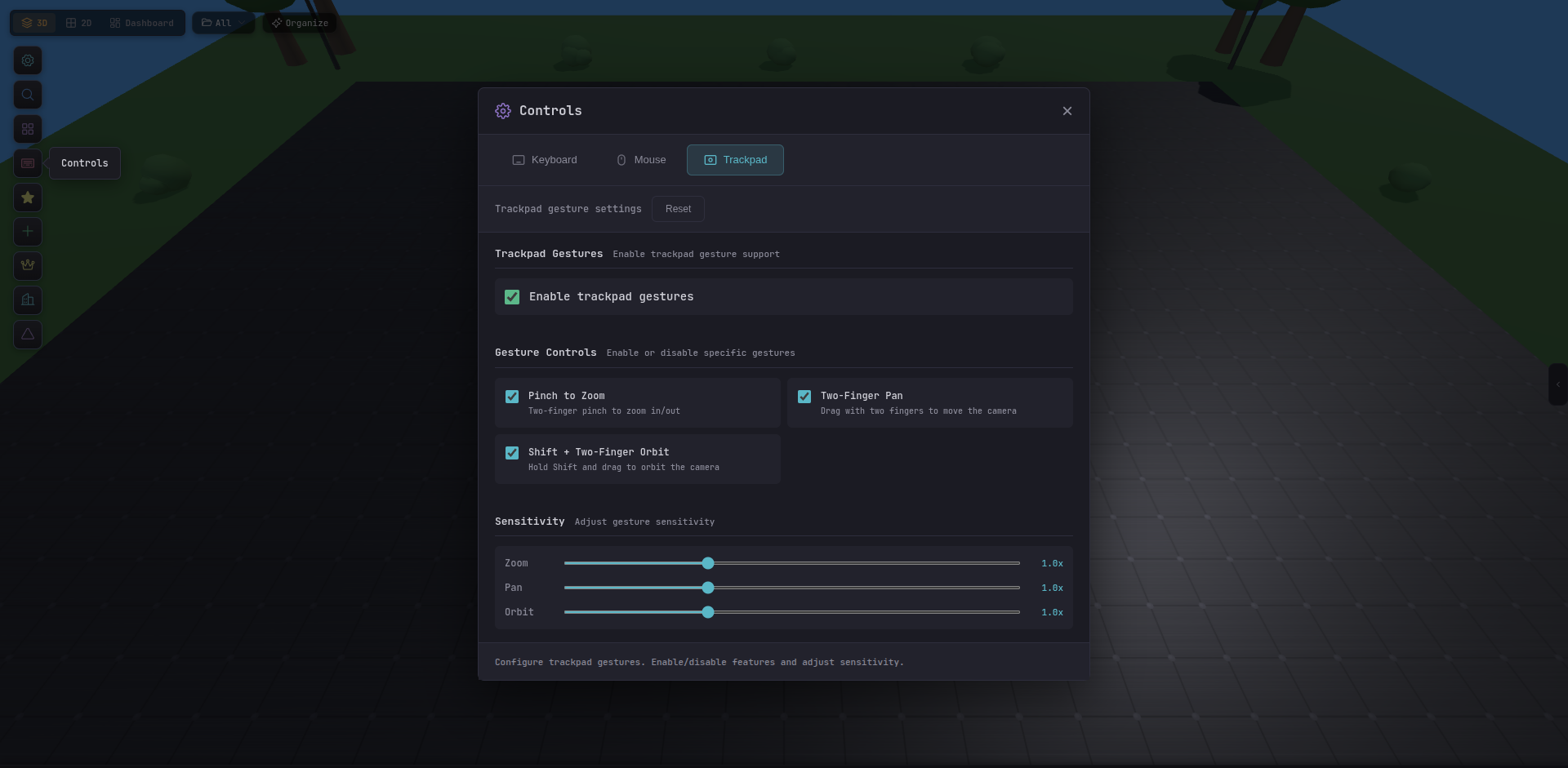
Keyboard / Mouse / Trackpad help
Pull up a cheat sheet for any input device. Bindings are fully customizable.
Sidebar states
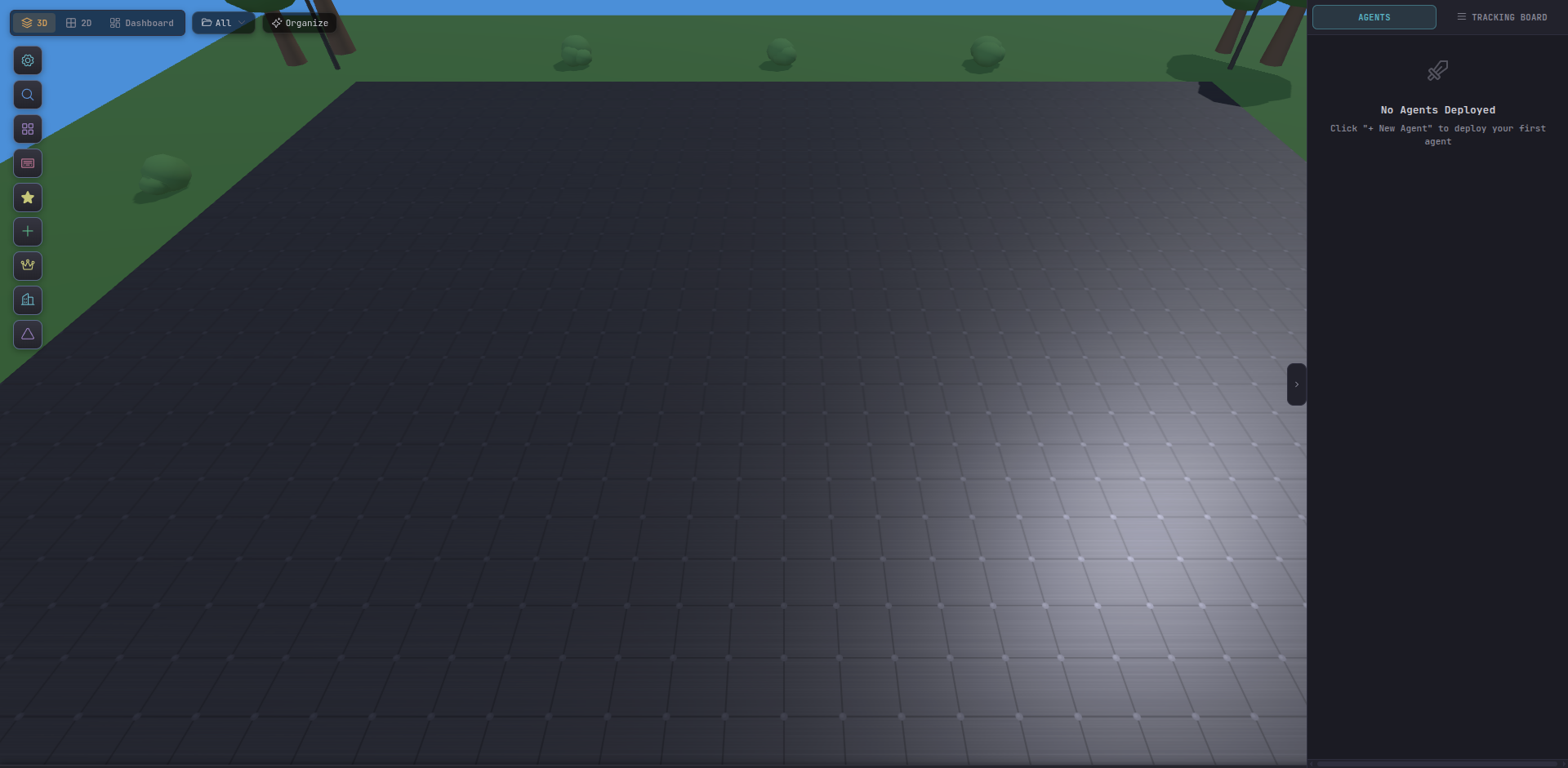
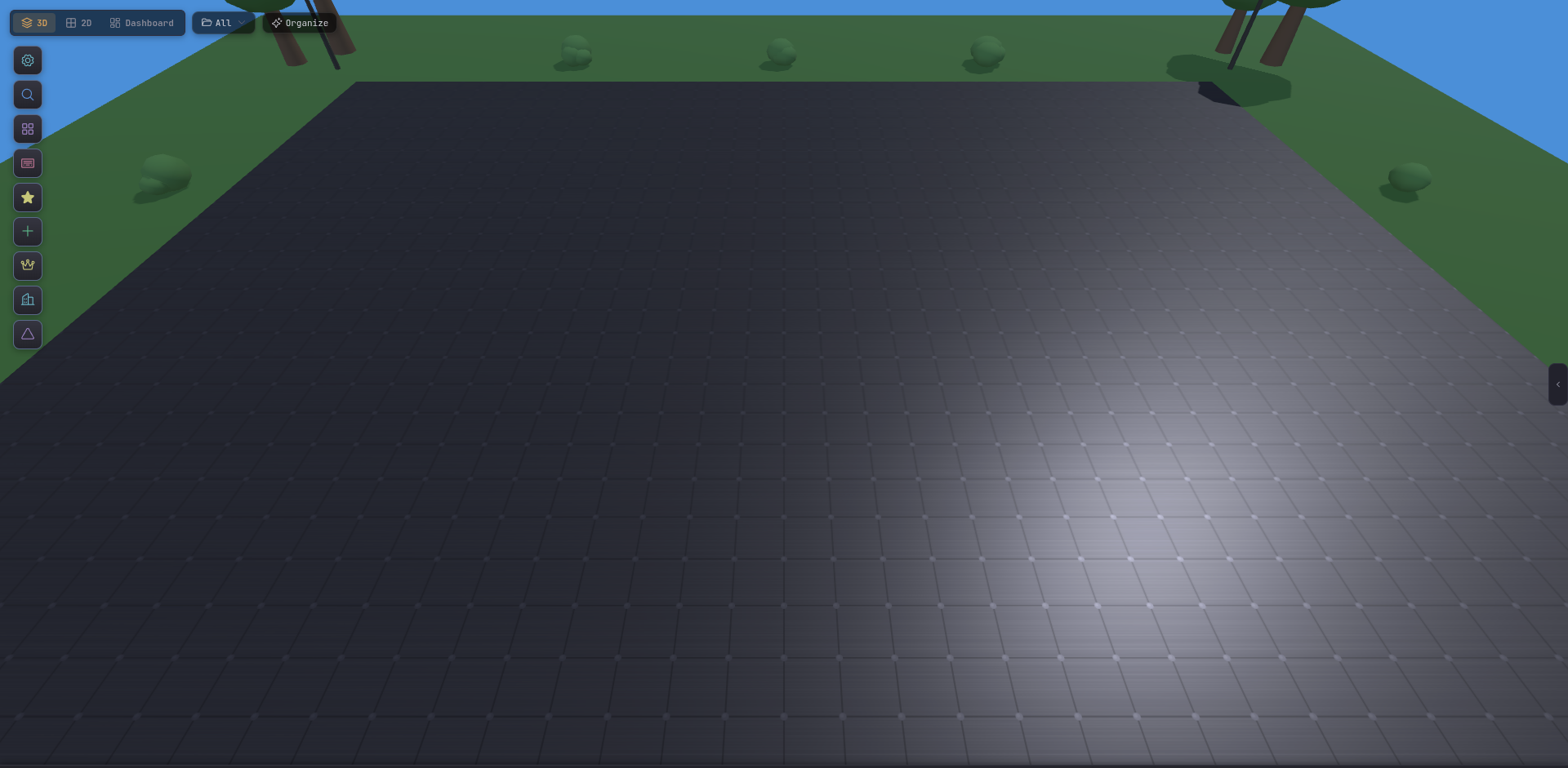
Sidebar open/closed is persistent per-view.
Settings surface
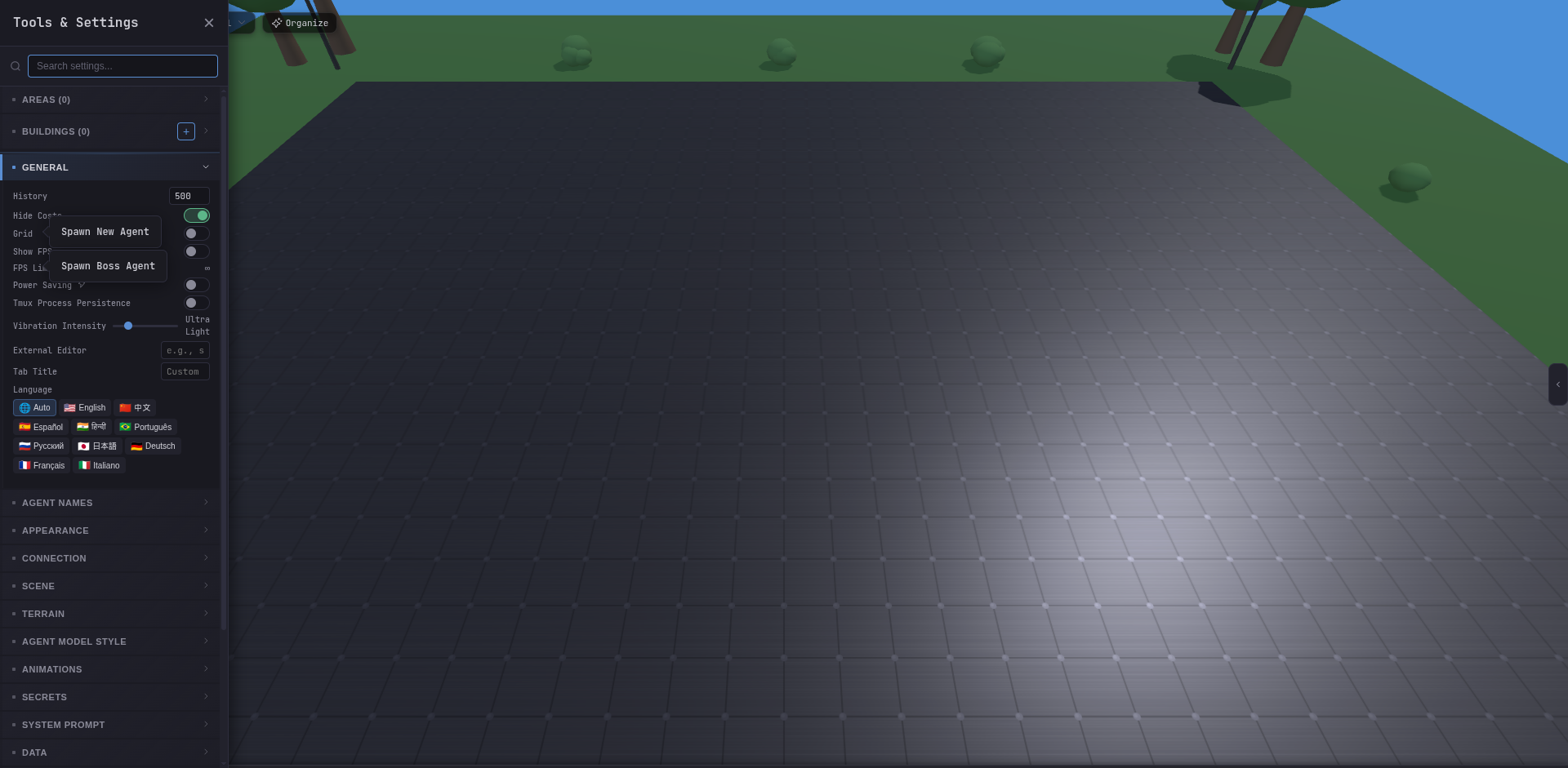
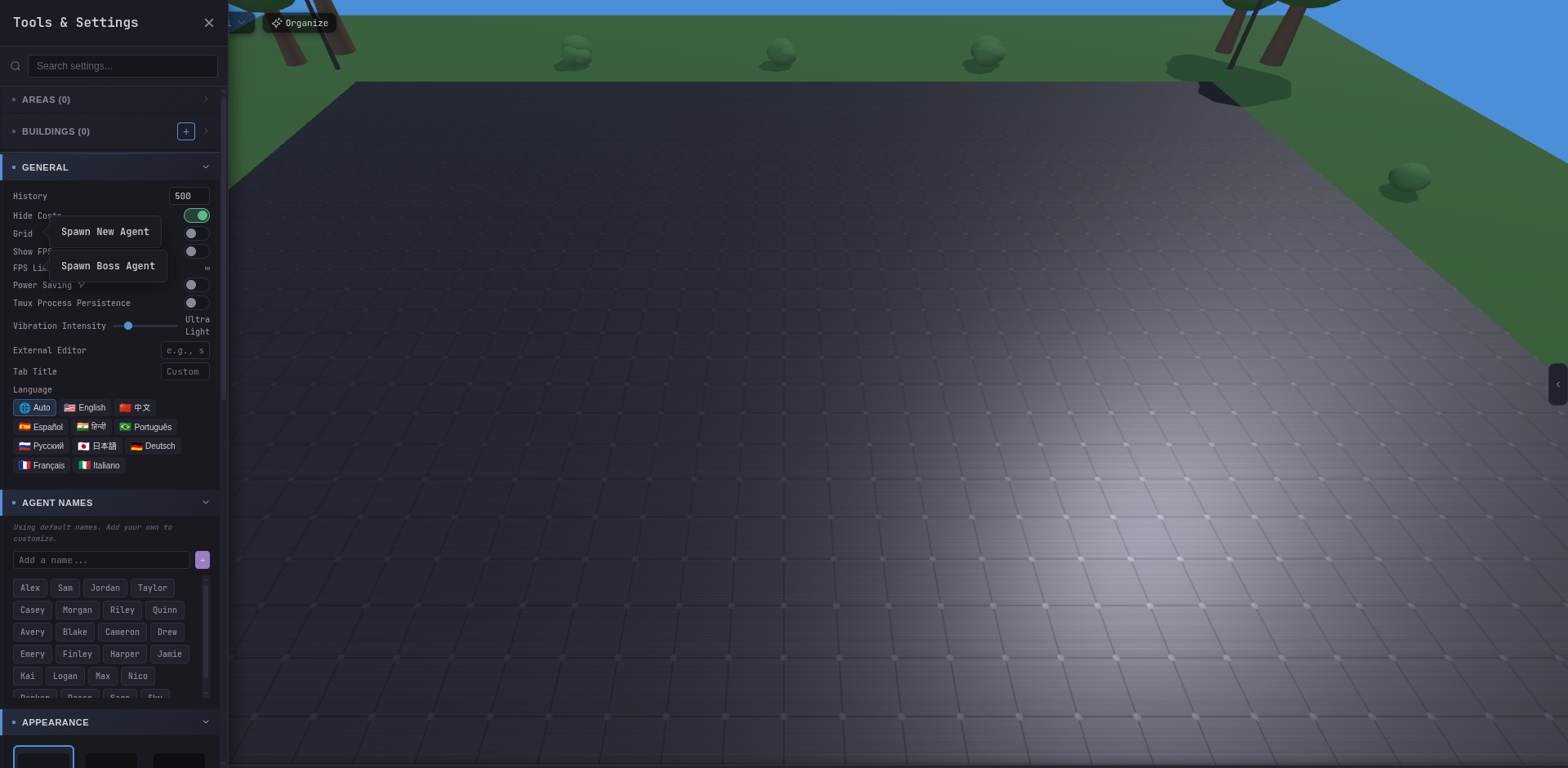
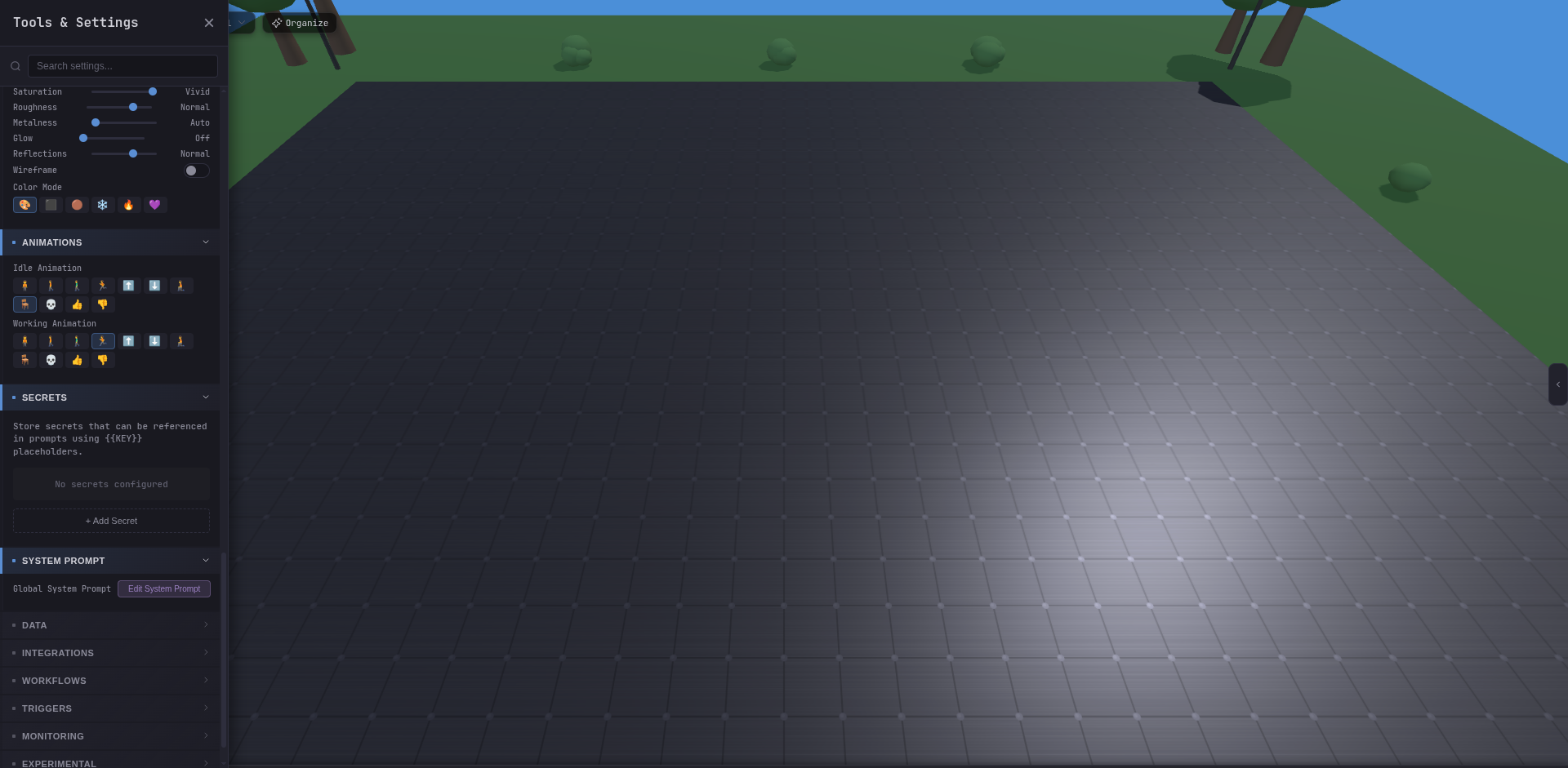
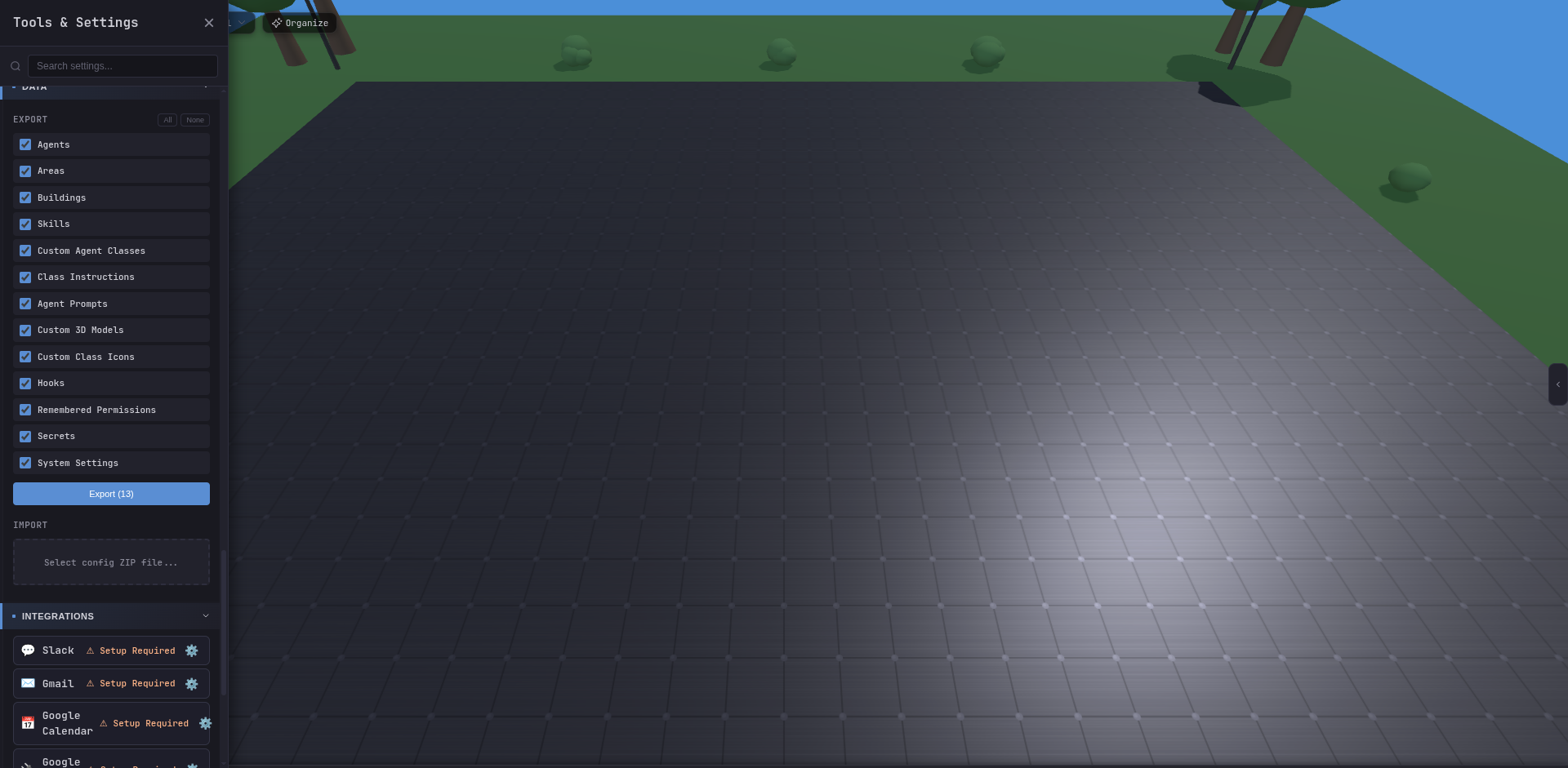
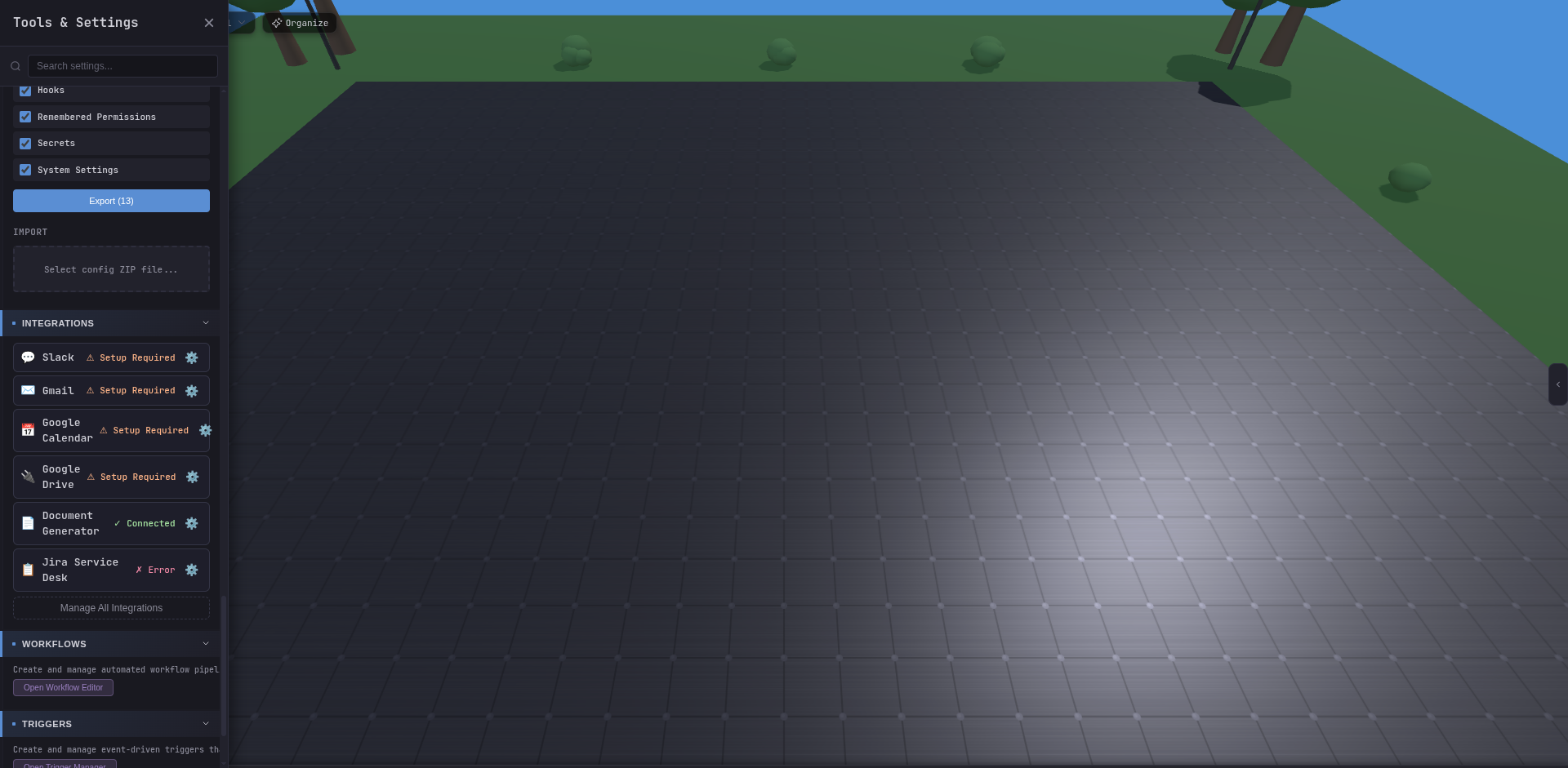
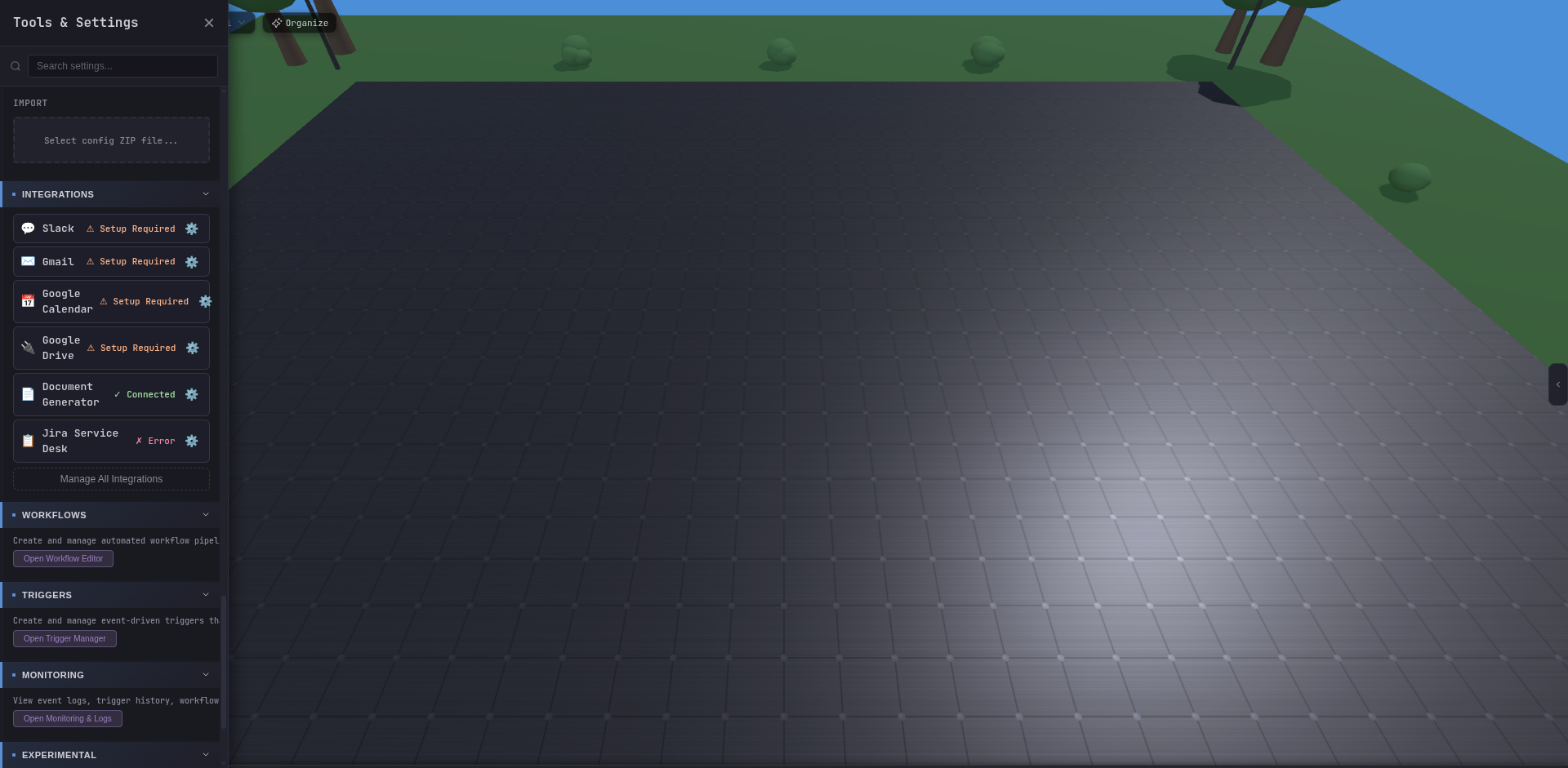
Settings live in a long, searchable panel. Every major subsystem has its own section.
| Section | Screenshot |
|---|---|
| General | 09-settings-general.png |
| Agent Names | 10-settings-agent-names.png |
| Appearance | 11-settings-appearance.png |
| Connection | 12-settings-connection.png |
| Scene | 13-settings-scene.png |
| Terrain | 14-settings-terrain.png |
| Agent Model Style | 15-settings-agent-model-style.png |
| Animations | 16-settings-animations.png |
| Secrets | 17-settings-secrets.png |
| System Prompt | 18-settings-system-prompt.png |
| Data | 20-settings-data.png |
| Integrations | 21-settings-integrations.png |
| Workflows | 22-settings-workflows.png |
| Triggers | 23-settings-triggers.png |
| Monitoring | 24-settings-monitoring.png |
| Experimental | 25-settings-experimental.png |
| About | 26-settings-about.png |

Manage Skills / Classes
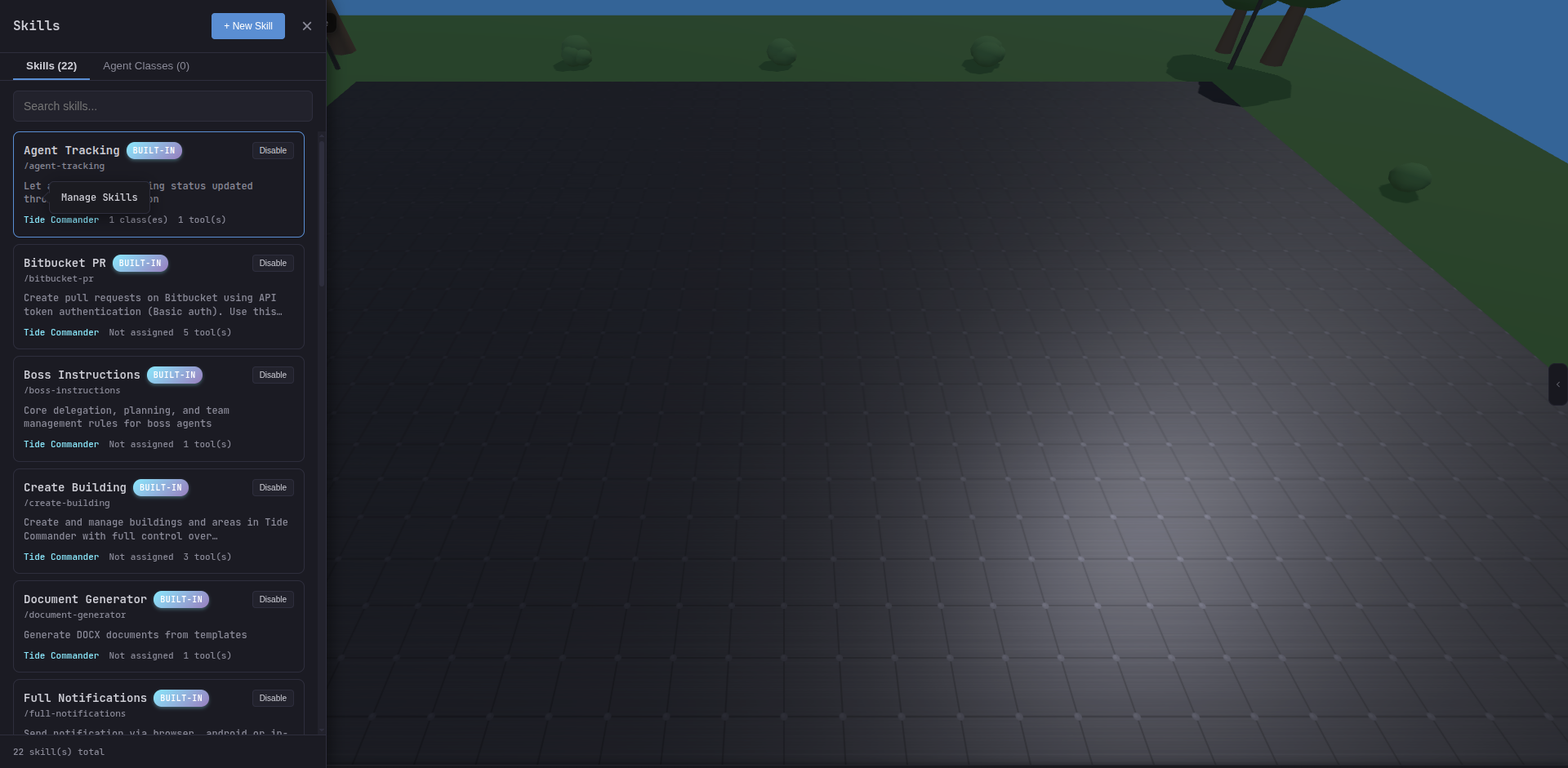
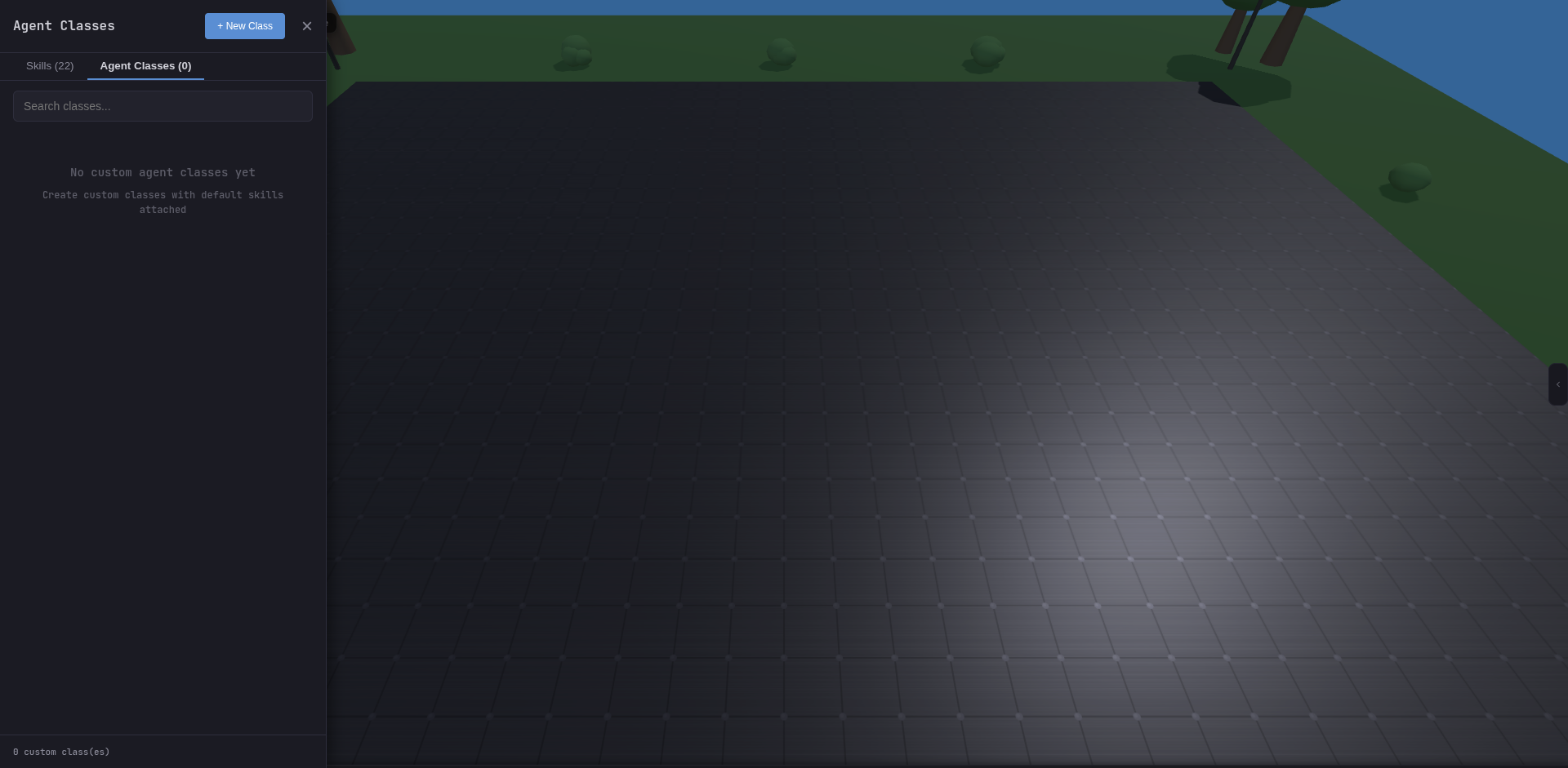
One screen, two tabs. Create, edit, and assign built-in or custom skills and classes.